How to Add Your Resume to LinkedIn
LinkedIn is a powerful platform that allows you to connect with other professionals, showcase your skills, and find job opportunities. Given that potential recruiters will go through your LinkedIn profile, you should add your resume to provide as much information about yourself as possible. A CV can help you attract recruiters and stand out from the crowd. Plus, it ensures they focus on your qualifications and relevant skills. This guide will show you multiple ways to add your resume to LinkedIn.
How to Use LinkedIn’s Resume Builder
LinkedIn has a dedicated resume builder to help you create your resumes efficiently. The tool uses your profile details to craft your resume, easily letting you edit the compiled data. So ensure you fill in all your details and then use this builder to download your CV.
- Go to your LinkedIn Profile.
- Click on More > Build a resume.

- Next, click on Create from profile.

- On the next screen, enter a Job title or skip it.

- Fill in all the resume details available on the page.
- Once done, click on Download as PDF.

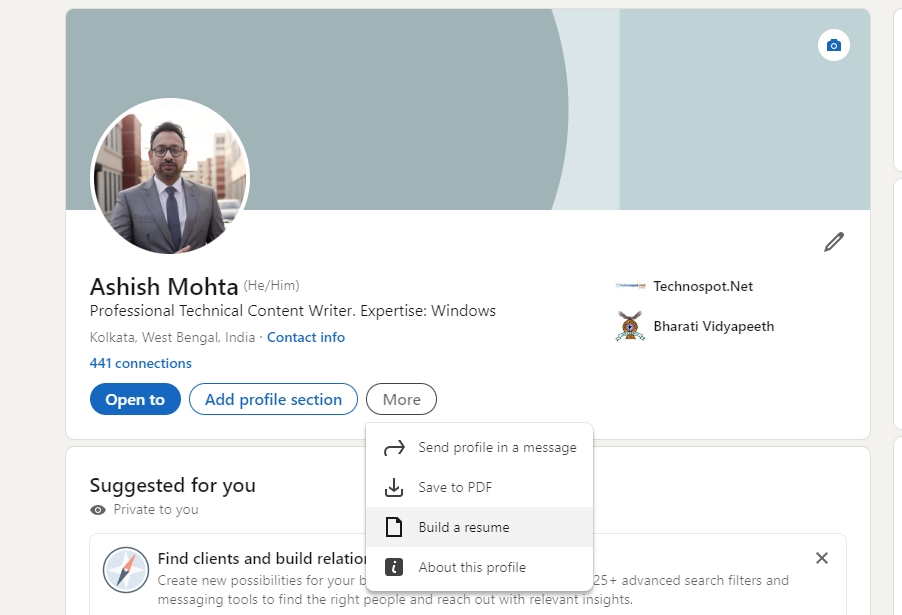
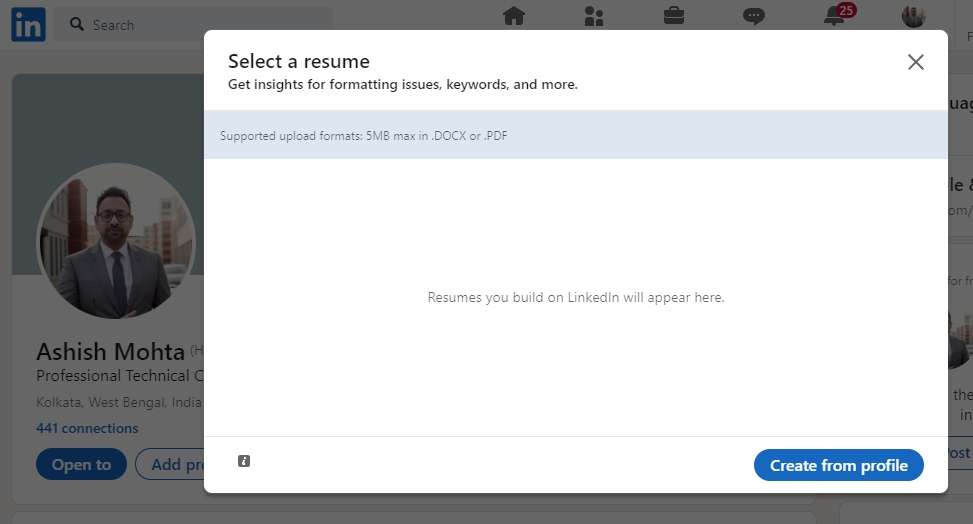
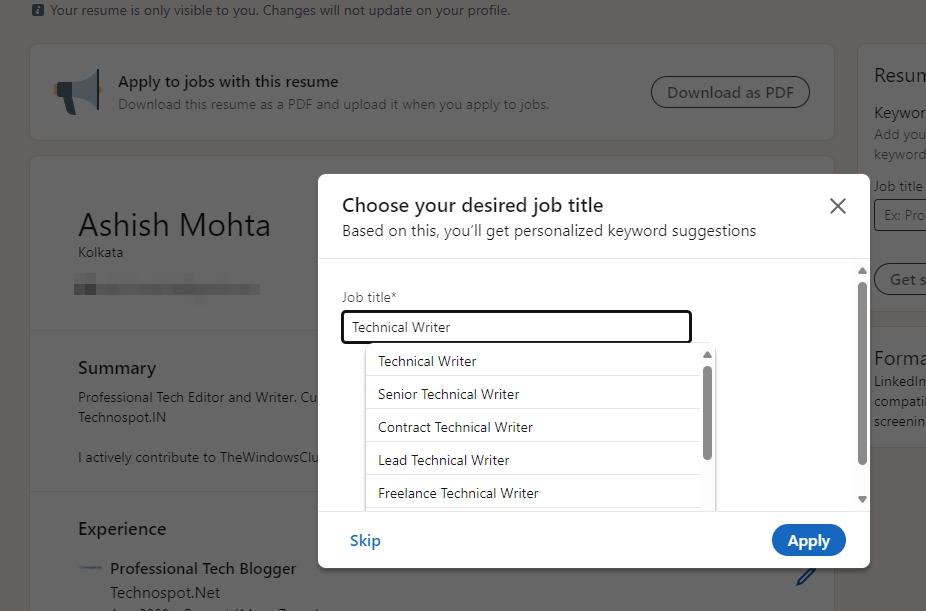
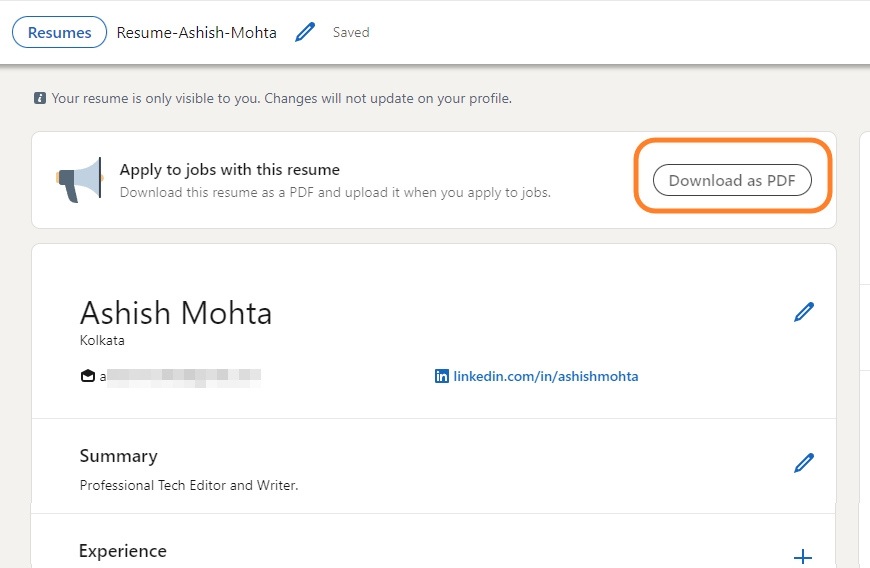
Your created resumes will be available under More > Build a resume, and you can edit them at your convenience. Also, ensure to add a great headshot to your LinkedIn profile picture.
The steps to add a resume to your LinkedIn profile remain the same, irrespective of whether you are on the phone or your PC.
How to Add Your Resume to LinkedIn
On LinkedIn, there is no specific section to upload your resume. But there’s a media section on your profile where you can upload your CV, so that your profile visitors can easily see them.
- Go to Linkedin.com > Your Profile.
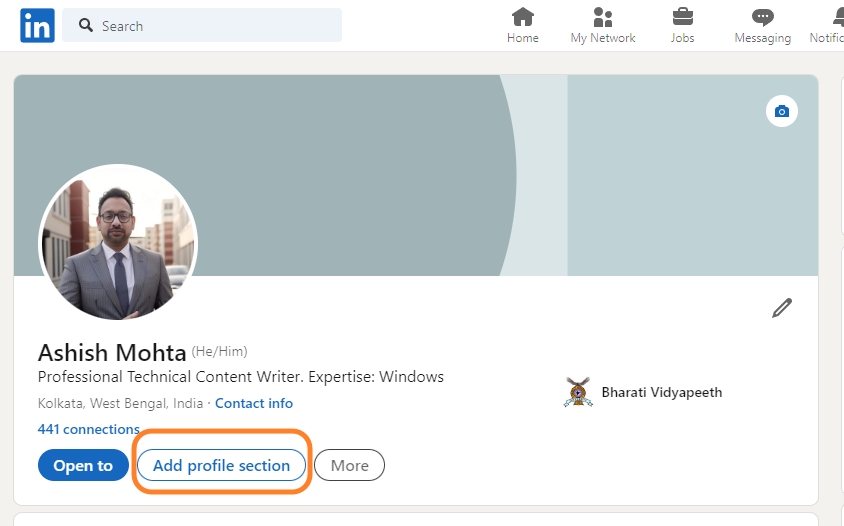
- Click on the Add Profile section.

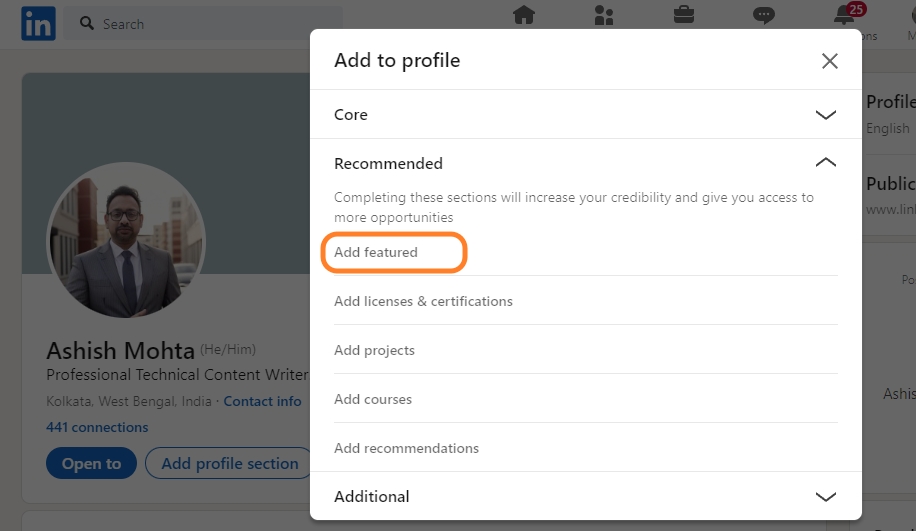
- Click on Recommended > Add Featured from the dialog box that appears.

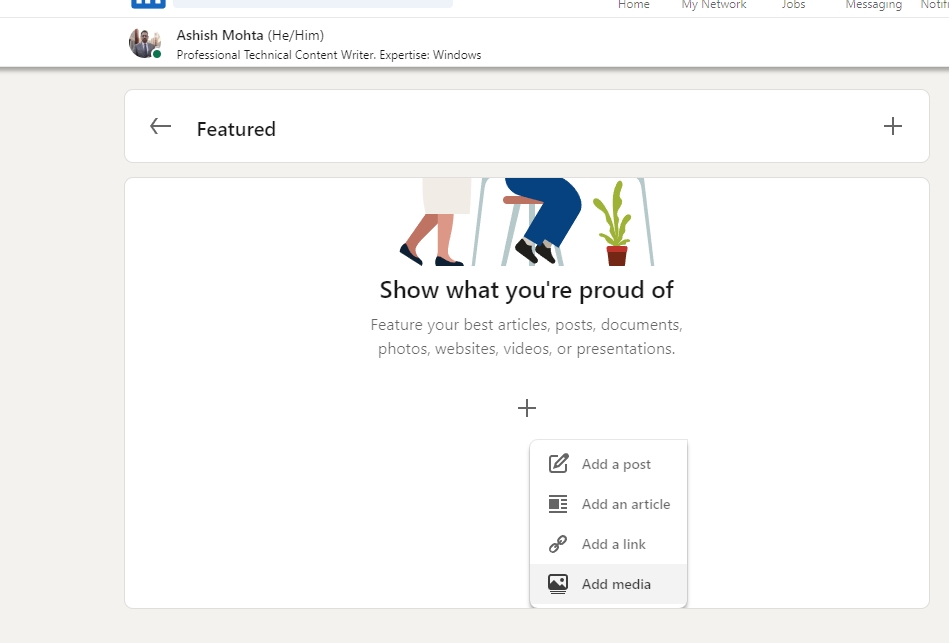
- Click the plus icon and select the resume to upload it.

- Once done, your uploaded CV will show up under the featured section of your profile.
Add a Resume While Applying For Jobs on LinkedIn
If you use LinkedIn to apply for jobs, you might want to attach your resume with your application. To do so, follow these steps:
- First, go to LinkedIn > Jobs.
- Over here, search for any jobs you are interested in.
- Click Easy Apply to apply for the job.

- Next, fill in your personal details like phone number, email, name, DOB, etc., and click Next.
- You will be asked to upload your resume. Click Upload resume to select your resume file, then click Next.

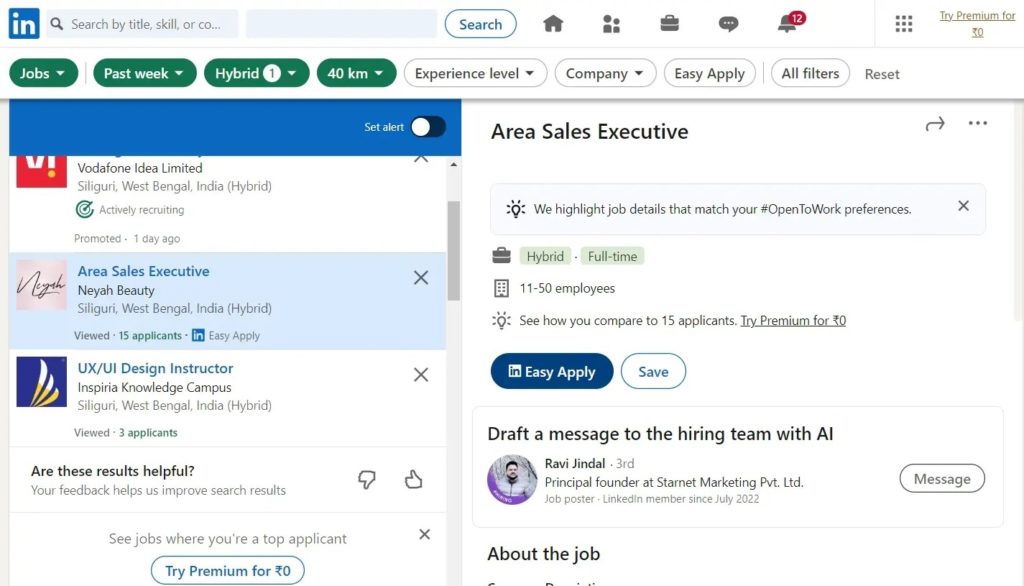
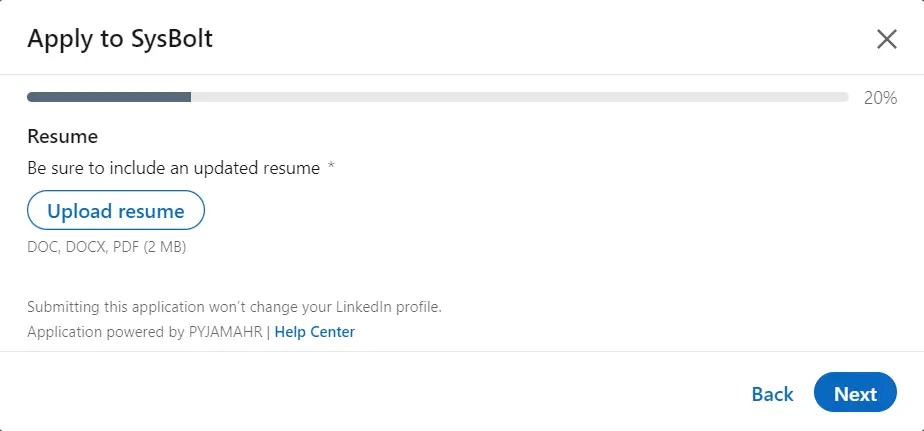
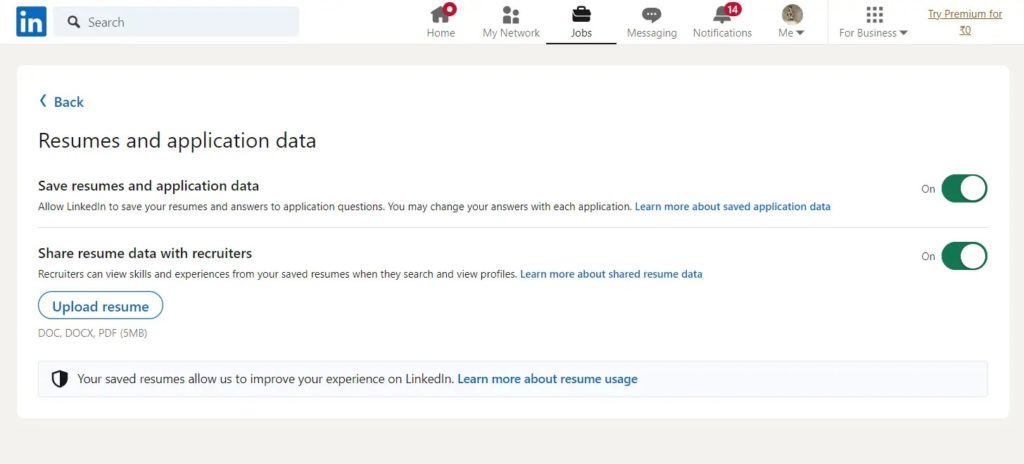
If you frequently apply for jobs on LinkedIn, you should update your job application settings. By doing this, LinkedIn will automatically answer application questions on your behalf. Plus, uploading your resume each time you apply for a job is unnecessary.
- Go to LinkedIn > Jobs.
- Select Application Settings located on the left screen.
- Over here, toggle on Save resumes and application data & Share resume data with recruiters options.
- Click Upload resume, select the file, and upload it.

Add Resume to LinkedIn as a Post
You might also want to upload your resume as a post on LinkedIn. For instance, you are probably looking for a job and write a post saying the same while attaching your resume.
- Go to LinkedIn.
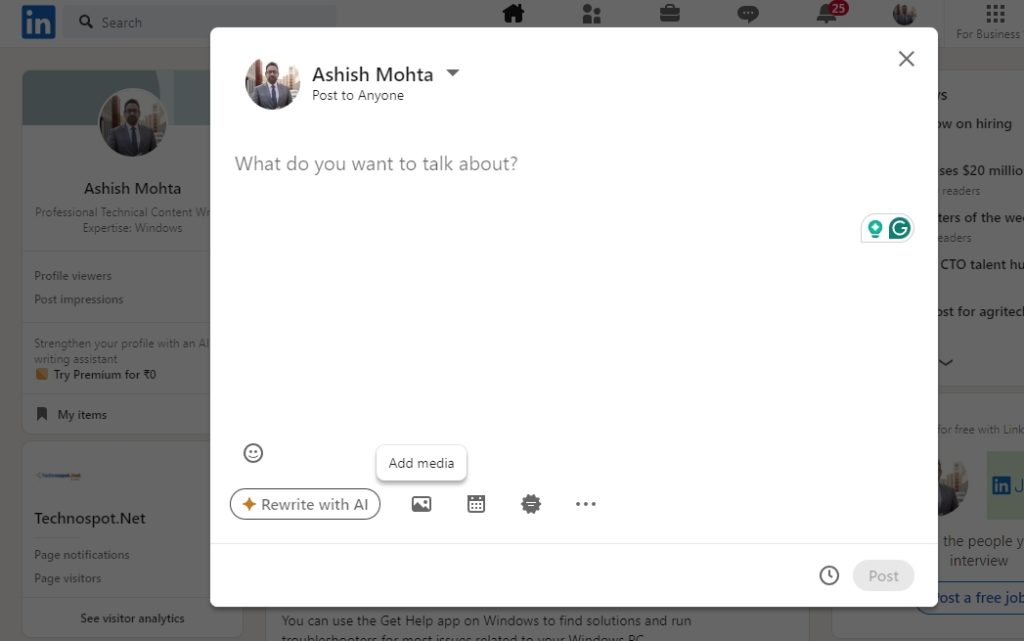
- Click on Start a post and write your post.
- At the bottom-left, you should see an image icon – click on it to upload your resume.

- Finally, click on the Post button.
You can always track who visited your LinkedIn profile, which allows you to follow up with potential clients discreetly.
Your LinkedIn Profile Is Your Digital Storefront
Adding your resume to your LinkedIn profile is a straightforward but effective way to improve your online presence and make yourself more noticeable to potential employers. By making your qualifications readily available, you open up opportunities for new connections and job prospects, putting yourself on a faster path to career success. Take a few minutes today to upload your resume and witness your network and career prospects flourish!
FAQs
A: Resumes uploaded under your profile will be visible to your profile visitors, and LinkedIn doesn’t provide you any privacy features to play around with the visibility of your resume. On the other hand, if you have uploaded your resume while applying for jobs on LinkedIn, it will be visible to that employer.
A: To save a LinkedIn profile as a PDF, go to profile, click More in intro, and choose Save to PDF from the dropdown. If you wish to save a LinkedIn member’s profile as a PDF file, navigate to their profile and then follow the steps.
How To Remove/Delete All Followers on Instagram
Read Next