How to Edit Instagram Direct Messages
Are you tired of sending Instagram DMs riddled with mistakes or realizing you forgot something crucial after hitting send? Worry no more. Instagram provides two ways to fix this problem: you can edit the sent message or unsent it altogether. The latter is a great option when you want to revoke an entire message, while editing is great for fixing minor typos.
Instagram Direct Message Editing Limitations
Similar to how you edit sent messages on WhatsApp, Instagram DM editing works in the same manner and has similar restrictions. So, you can edit your message within 15 minutes of pressing send. Additionally, you can only edit a sent message up to five times.
Another thing to note is that your modified messages will have the “edited” label, and the other person will be able to see it. But they cannot see the edit history.
One significant limitation of editing direct messages on Instagram is that you cannot edit messages with mentions or commands. So, if you have a silent notification using the “\silent” command, you cannot edit it. However, you can unsend it and then resend it.
How to Edit Instagram Direct Messages
The option to edit sent Instagram direct messages is available on the app but not on the web. So, if you use Instagram on your Windows PC, you cannot edit messages sent through it.
- Open the Instagram app and go to the Messages icon on the upper right-hand side of your screen.
- Open the conversation in which there’s the message you want to edit.
- Long press on the message you want to edit.
- A popup with an Edit option should appear; tap on it.

- Finally, correct or edit your Instagram message and tap Done to send the edited version.

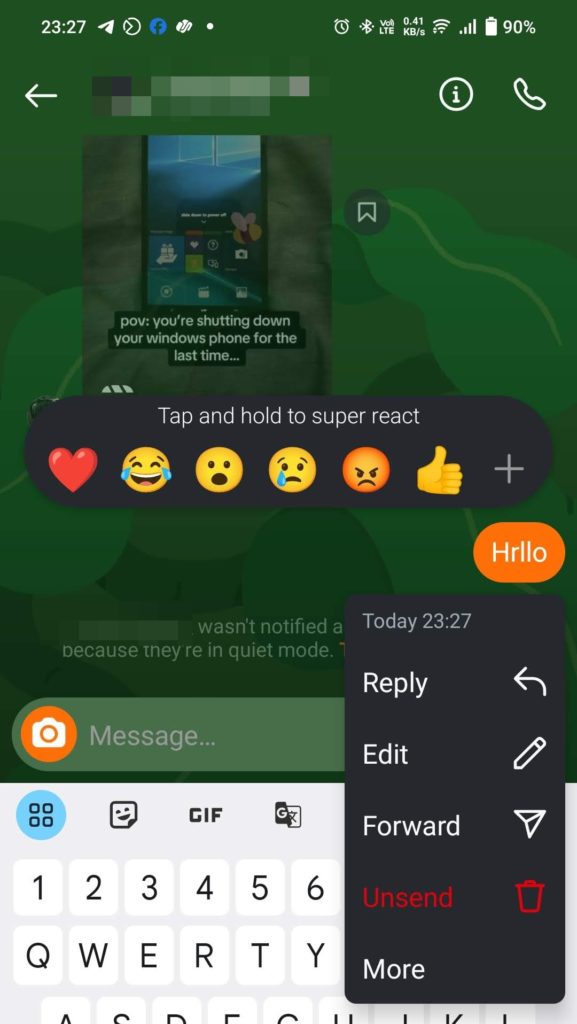
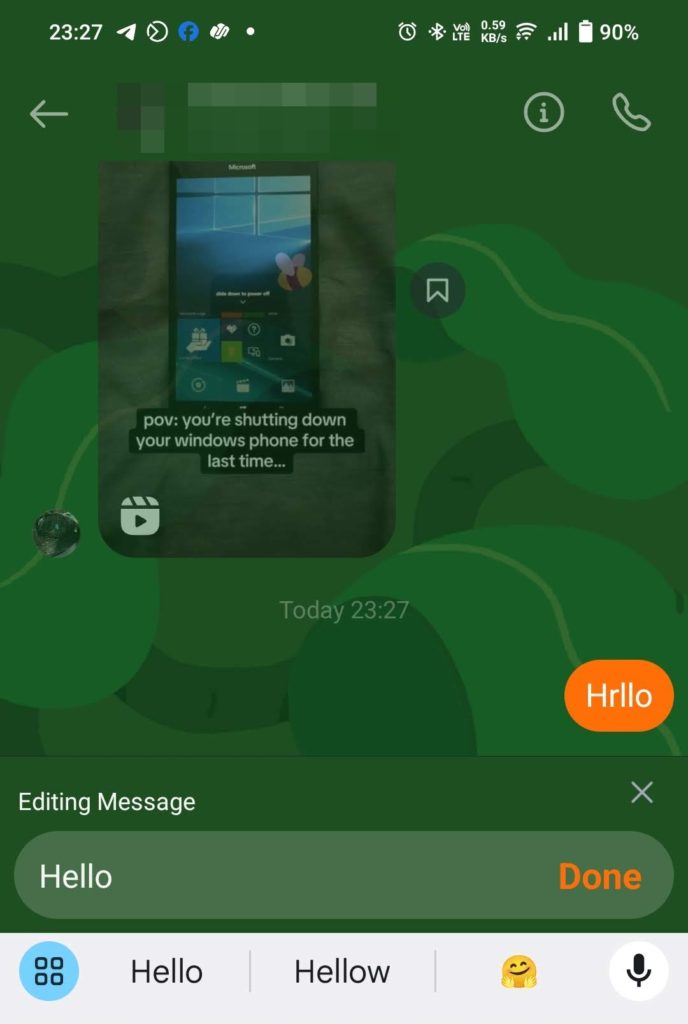
Also, if someone is showing you a fake Instagram message, ask him to edit a sent message and then share the screenshot with you. If there is no edit tag, you know it’s fake for sure.
Fix Your Mistakes
Instagram now lets you edit messages within 15 minutes of sending them! This is handy for fixing typos or making last-minute changes, especially in lengthy messages. But remember, the recipient will see an “Edited” note.
If you need more time to craft a perfect message, consider using the “Unsend” option instead. Just be aware that this removes the message entirely; you must rewrite it from scratch.
FAQs
A: The only way to customize your DMs on Instagram is to change the chat theme. You can keep different chat themes for other contacts. Also, to set a theme, you must open the chatbox and then click on the person’s name > Theme. Finally, choose any of your favorite themes, and you are all set.
A: In most cases, you shouldn’t have any issues replying to messages on Instagram. However, if you are using an older version of the app or Instagram released some new features, you might have trouble replying to a specific message on Instagram. Even in some instances, Instagram might prevent you from replying to messages over 24 hours old, but this is rare.
How to Find Someone From Snapchat on Instagram
Read Next