How to Turn Off Login Approval on Facebook

Facebook calls its two-factor authentication (2FA) system as Login approval. It is a security feature that requires you to enter an OTP sent to your mobile phone via text message whenever you log into your Facebook account from a new or unrecognized computer. But you might find login approval on Facebook annoying and could be looking to turn it off. Follow this guide to learn how.
Should You Disable Login Approval on Facebook?
While login approval is a valuable security feature, it can be inconvenient. For example, if you frequently log in to Facebook from different devices, entering the code every time may be cumbersome. Additionally, if you lose your phone or change your phone number, you may not receive the code, thus locking you out of your account.
However, it is essential to note that turning off login approval can make your account more vulnerable to hacking attempts, as it removes an extra layer of security. After the security feature is turned off, you will not receive any notification of login attempts from an unrecognized device.
If you have a huge fan following on Meta’s social media platform, get verified on Facebook to get priority support and better security controls.
Always weigh the convenience against the security implications and make an informed decision based on your needs.
How to Turn Off Login Approval on Facebook
The steps to turn off login approval are the same for desktop and mobile. The only difference is accessing the settings, which are under profile on the desktop and under the hamburger menu on mobile.
- Log in to your Facebook account with your credentials.
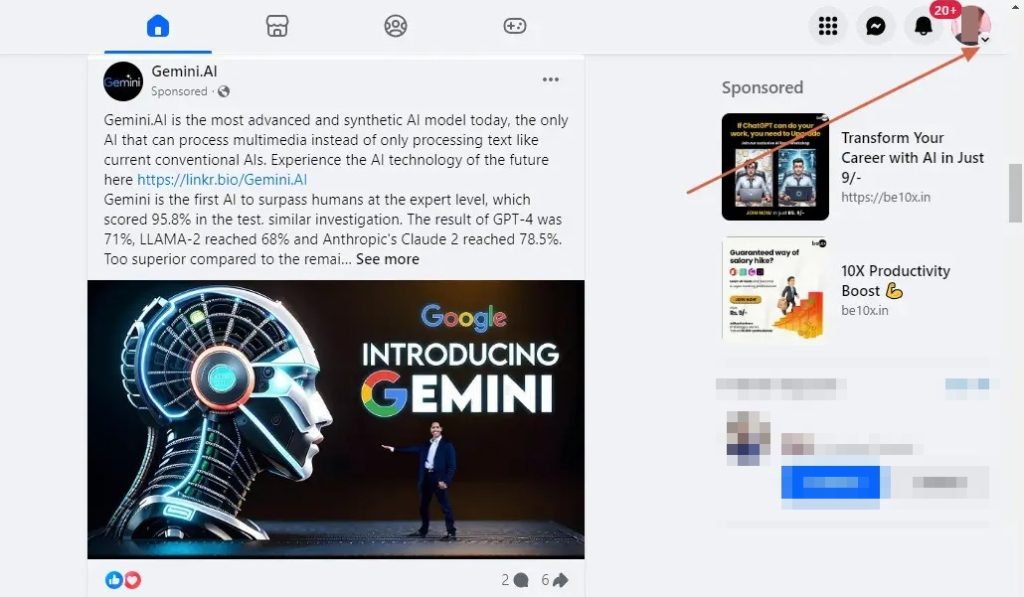
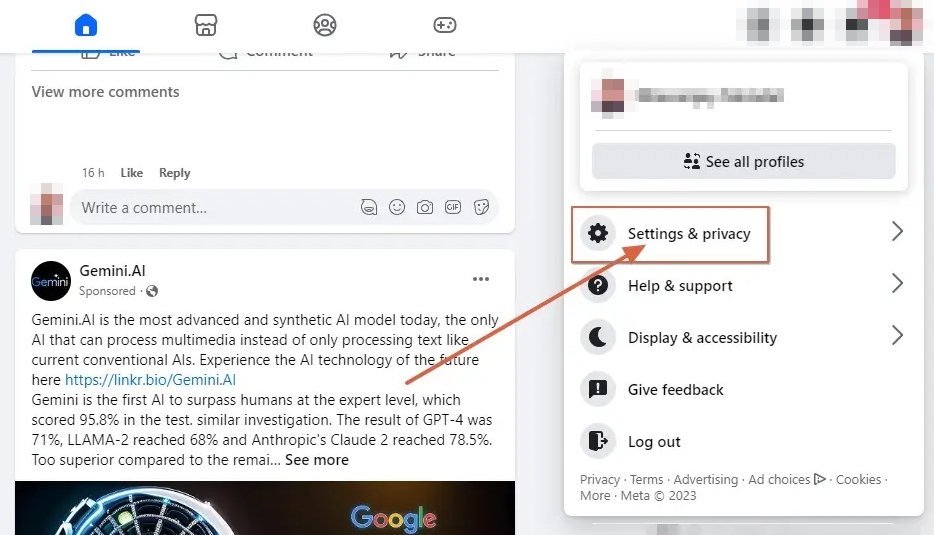
- Click on the down arrow in the top right corner of the screen beneath your profile picture.

- Select Settings & Privacy from the dropdown menu.

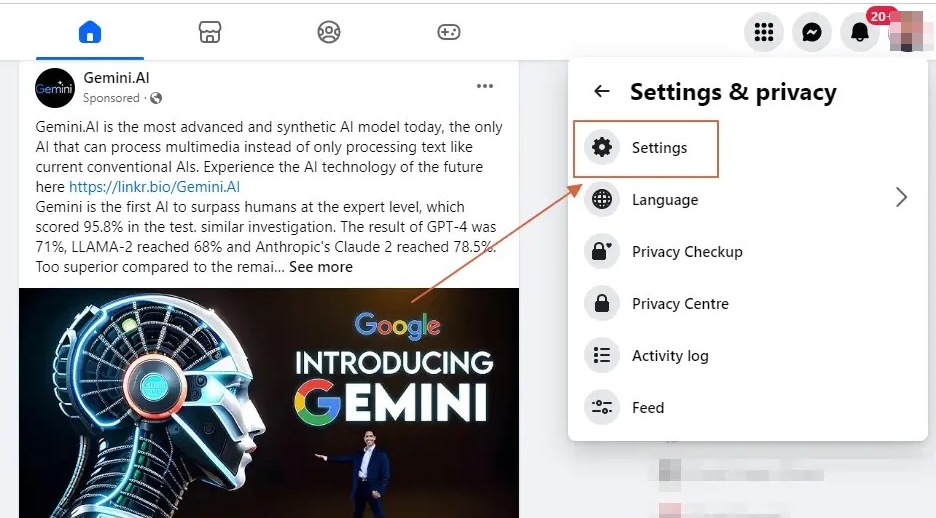
- Click Settings.

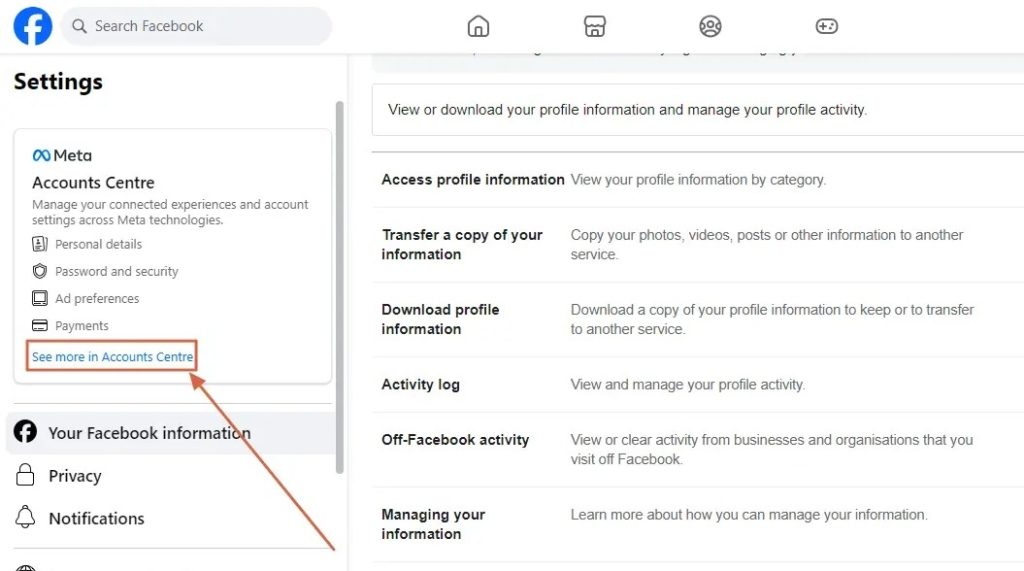
- Click on See more in Accounts Centre.

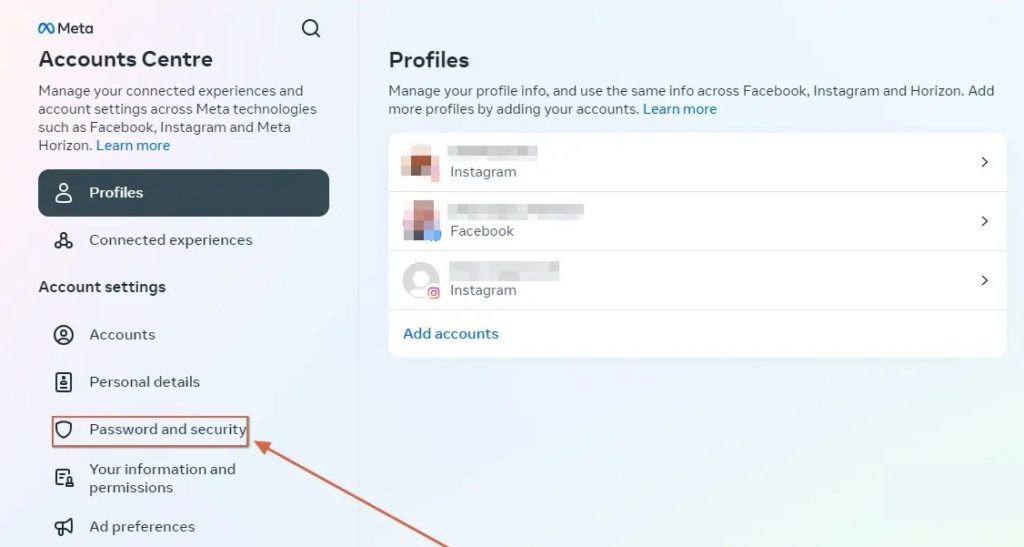
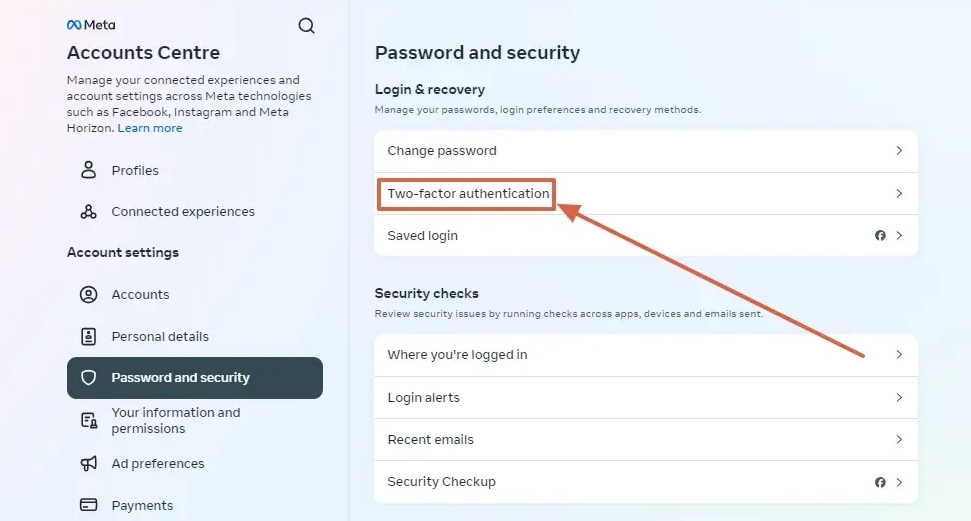
- Select the Password and security option under Account settings.

- Click Two-Factor Authentication under Login & recovery.

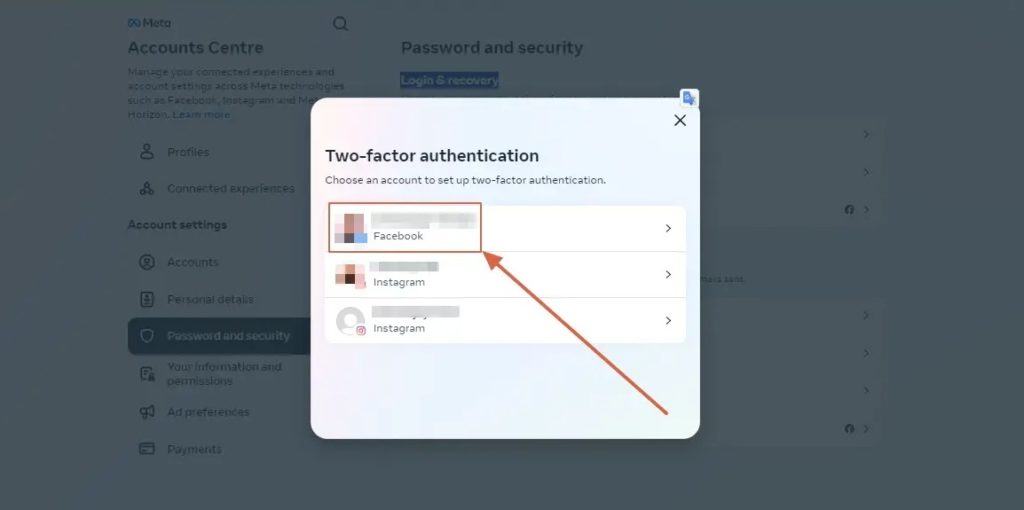
- Select the Facebook account for which you want to remove login approvals.

- Enter your Facebook account login password and hit Submit.
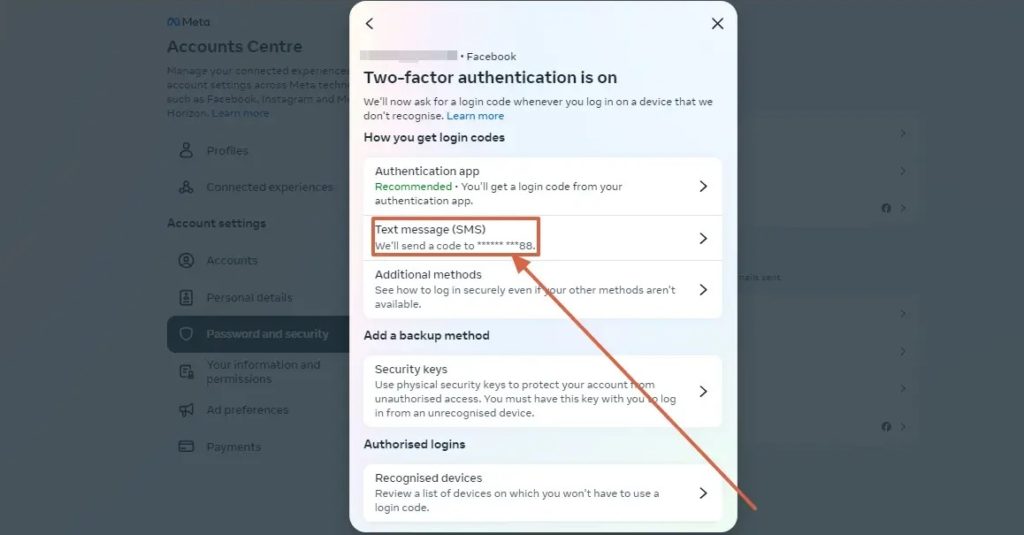
- Click the Text message (SMS) option.

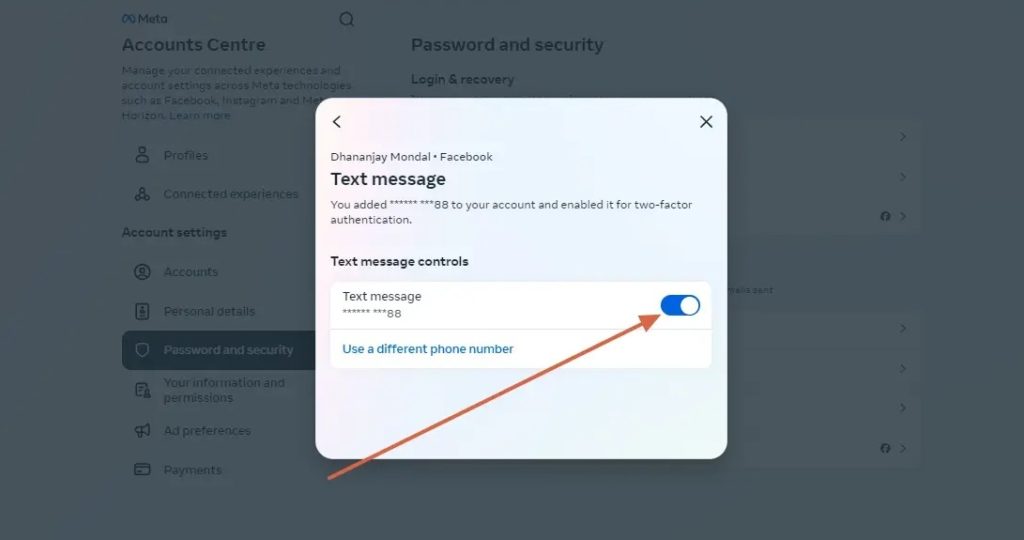
- Turn off the toggle button beside the Text message option.

- The two-factor authentication for the account will be turned off.
Following this method, you can reduce the nudge that appears on multiple devices for approvals. Note that this won’t disable login approvals altogether. If you have linked a 2FA app with your Facebook account, you must enter an OTP generated from it before you can log in from a new device.
If you are locked out of your account due to login approval issues, contact Facebook support for account recovery.
How to Find and Review Login Approvals on Facebook
If you want to review your Facebook account login approvals or find out if someone else has logged in, follow these steps.
- Log in to your Facebook account.
- Click on the down arrow in the top right corner of the screen.
- Select Settings & Privacy from the dropdown menu.
- Click on Settings.
- Click on See more in Accounts Centre.
- Select the Password and security option under Account settings.
- Click on Two-factor authentication.
- Select the account for which you want to review login approvals.
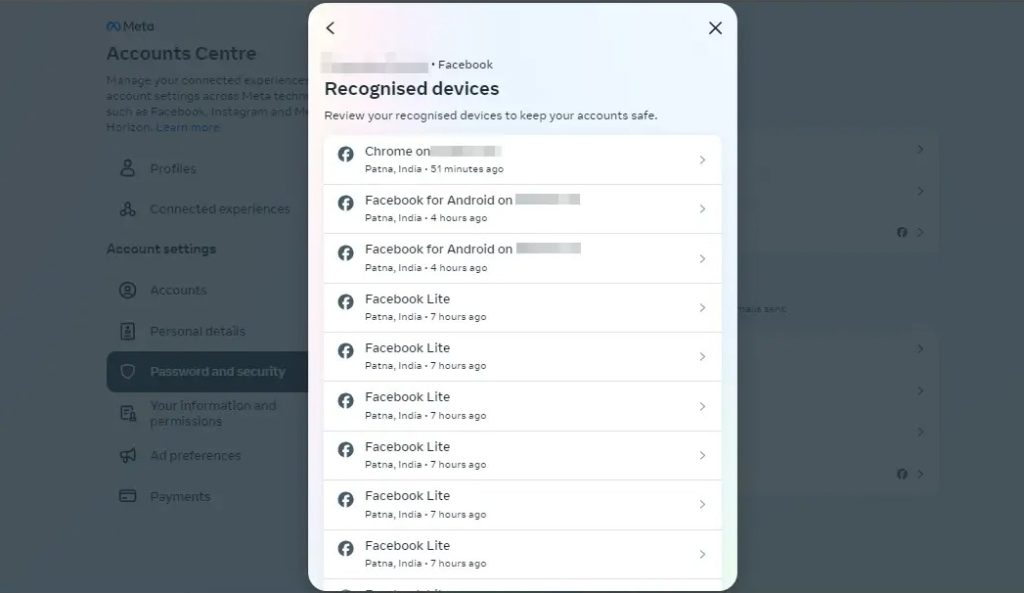
- Click Recognized devices under Authorised logins.

- Here, you can review and manage all recognized devices.
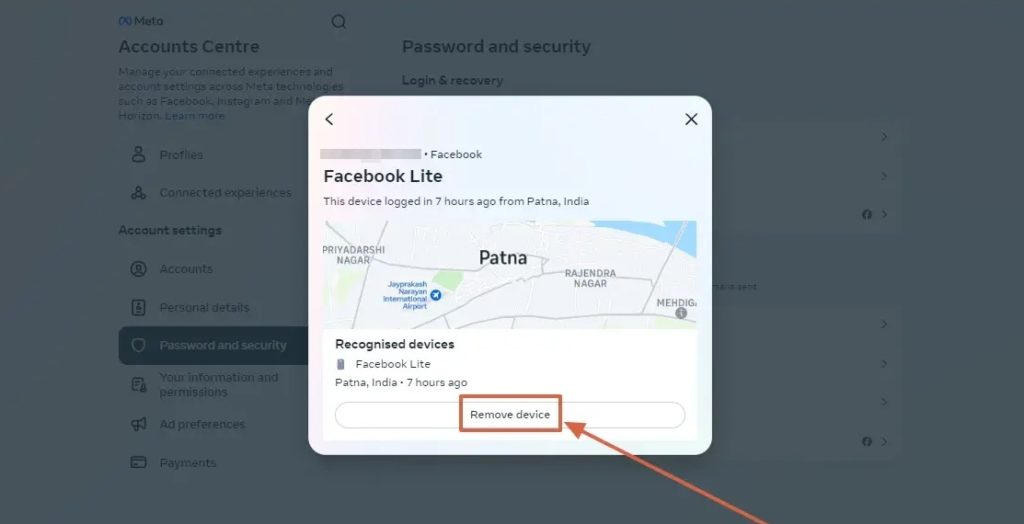
- If you see any suspicious devices, select the device.
- Click on the Remove device button.

Safety Over Convenience
Login approval is a useful security feature that can protect your Facebook account from unauthorized access. Turning off the feature will make your Facebook account more vulnerable to hacking attempts, so ensure you understand the risks involved.
Remember, security is a continuous journey, not a destination. Stay informed, stay vigilant, and stay safe!
FAQs
A1: To remove an authorized user from your Facebook account, go to Settings & privacy> Settings > See more in Accounts Centre > Password and Security> Where You’re Logged In. Find the session you want to end and click Log out.
A2: To disable auto-play, go to Settings & privacy > Settings > Media > Autoplay and choose On mobile data and Wi-Fi, On Wi-Fi only, or Never autoplay videos.
How to Post a Picture in Facebook Comment
Read Next