



How To Remove a Facebook Profile Picture

Maintaining strict control over your profile picture on Facebook is crucial for protecting your personal information and privacy. Fortunately, the social media giant provides an easy way to remove your old profile photo from its platform.
Wondering how? Follow this guide to learn how to delete your old Facebook profile photo from your phone, PC, or the web.
What Happens When You Delete Your Facebook Profile Picture?
When you delete your profile photo on Facebook, your image will no longer be accessible. This means people won’t see your old profile photo anymore. Instead, it will be replaced with Facebook’s default profile photo—a white silhouette of a person with a gray background.
Moreover, all engagement on that deleted photo will no longer be displayed. This includes likes, comments, and reactions.
Deleting your Facebook profile photo is a great way to stop strangers from seeing your Facebook account and improve your online privacy.
How To Remove a Facebook Profile Picture From a PC
If you’re big on privacy but don’t want to delete your Facebook account permanently, you can change your current profile photo to the default option. This way, you can stay connected with your loved ones on Facebook. If you use the platform on your computer, here’s how.
- Log in to your Facebook account.
- Click Account.

- Select your profile icon.
- Click your profile picture.
- Select See profile picture.
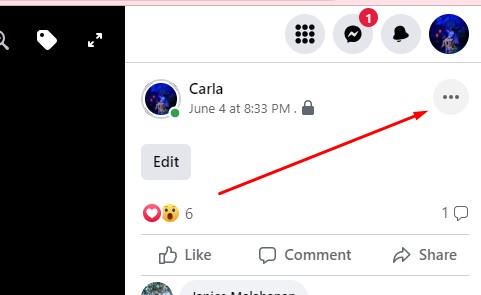
- Click the ellipsis button across your name.

- Select Delete Photo.
- Click Delete to confirm.

How To Remove a Facebook Profile Picture on Android
The process of removing your Facebook profile picture on Android is slightly different than on the web. Still, this is a relatively easy process.
- Launch the Facebook app on your Android device.
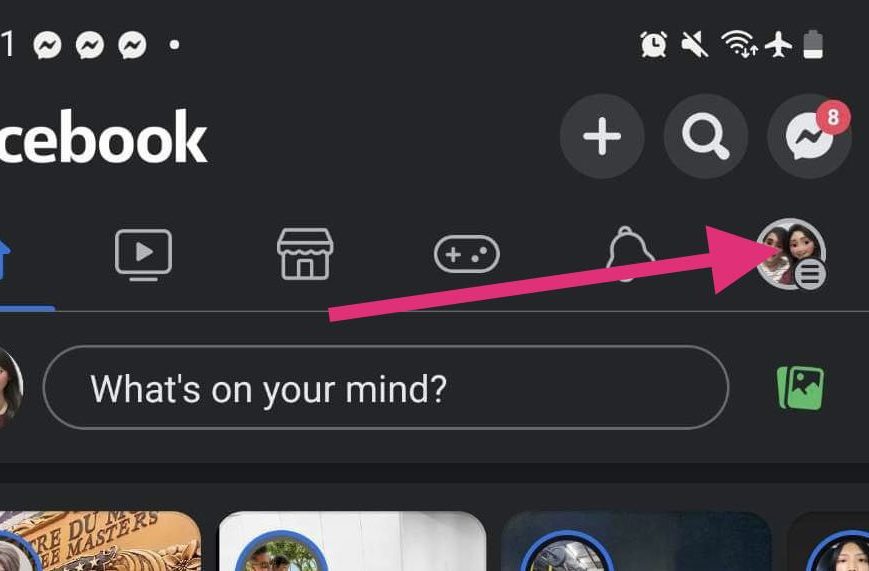
- Tap your profile icon at the top right corner of your screen.

- Tap your name.
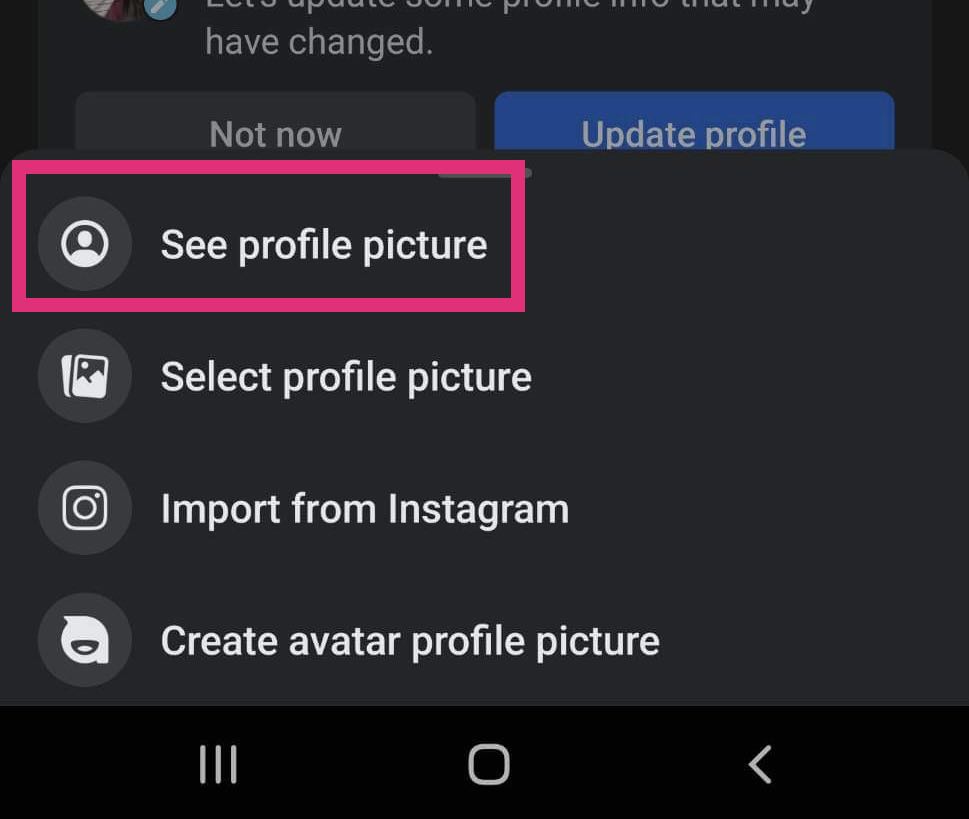
- Select your profile picture.
- Select See profile picture.

- Tap the vertical ellipsis button at the top right corner of your screen.
- Select Delete photo.
- Tap Delete to confirm the deletion.


How To Remove a Facebook Profile Picture on an iPhone
Facebook’s mobile user interface on iPhone has a different layout than Android. Because of this, removing a Facebook profile picture on an iPhone is also different. Nonetheless, it remains easy to do. Follow these steps:
- Launch the Facebook app on your iPhone.
- Tap the menu button on the lower right corner of your screen.

- Select your name.
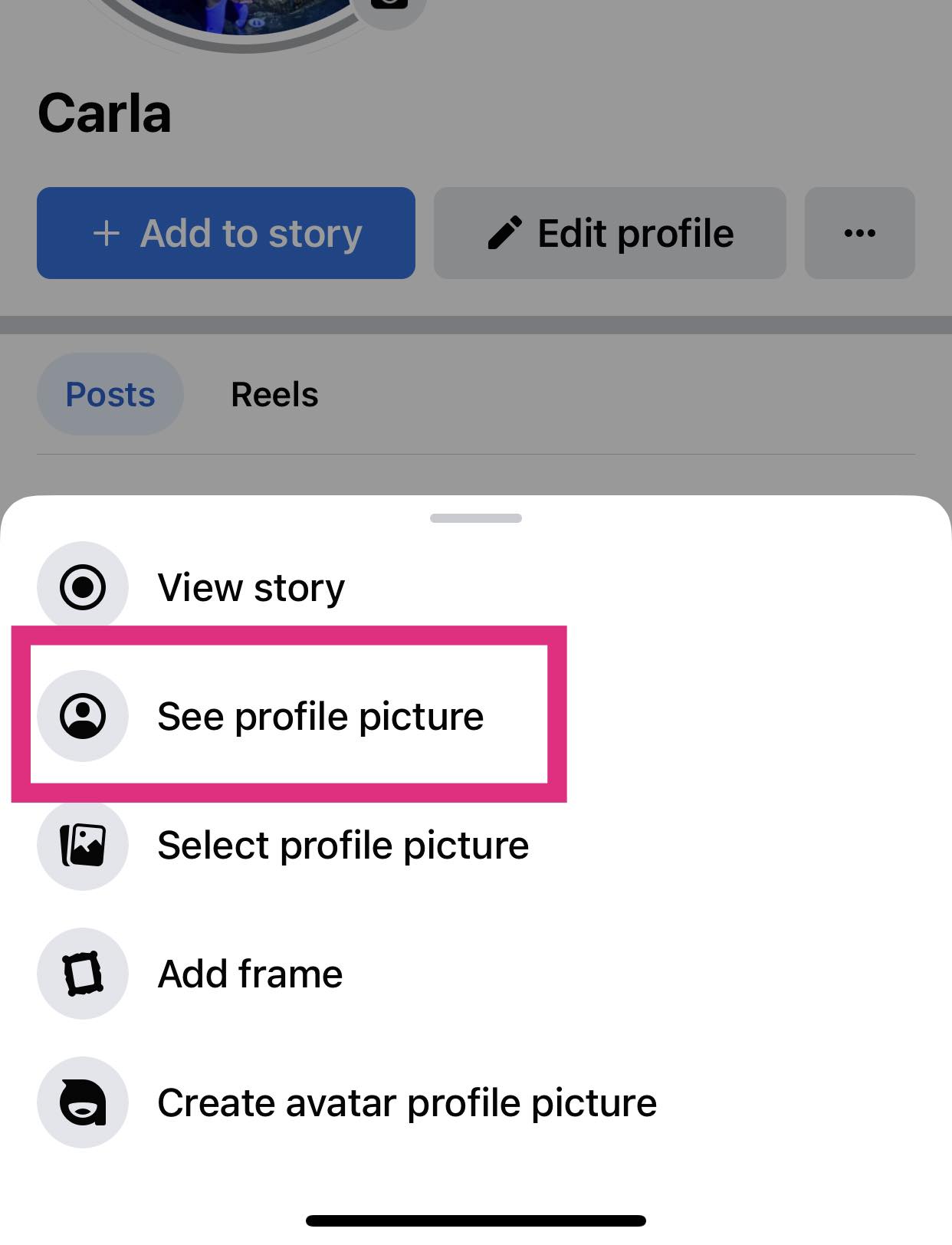
- Tap your profile picture.
- Select See profile picture.

- Tap the ellipsis button at the upper right corner of your screen.
- Select Delete Photo.
- Tap Delete to confirm the deletion.

Can You Remove a Facebook Profile Picture Without Deleting It?
Unfortunately, you can’t remove a Facebook profile picture without deleting it. But you can hide your current profile picture from your album. By doing this, neither strangers nor your friends can see your recent profile picture in your album.
Protect Your Privacy
Privacy is becoming a huge concern online, with scammers utilizing AI to exploit profile photos and impersonate individuals. With this guide, you can protect your privacy more and prevent scammers from using your image. If you feel this isn’t enough, you may also consider deleting all of your photos and albums on Facebook to safeguard your privacy.
How To Delete Your Reddit Account
Read Next



















One thought on “How To Remove a Facebook Profile Picture”