How to Unarchive a Post on Facebook

Sometimes, you might not feel like sharing specific posts with your Facebook friends and end up archiving them. But later on, you might want to unarchive such posts and restore them to your profile. So, how do you unarchive a post on Facebook after archiving it? And how to restore the ones you cannot find in archives?
How to Archive a Post on Facebook
While you can delete all Facebook posts you want to remove from your profile, archiving them is a better option as you can always retrieve them later on.
- Open Facebook on your PC and go to your profile.
- Select the post you want to archive.
- Click the three horizontal dots alongside the post.
- Choose Move to archive from the popup options.

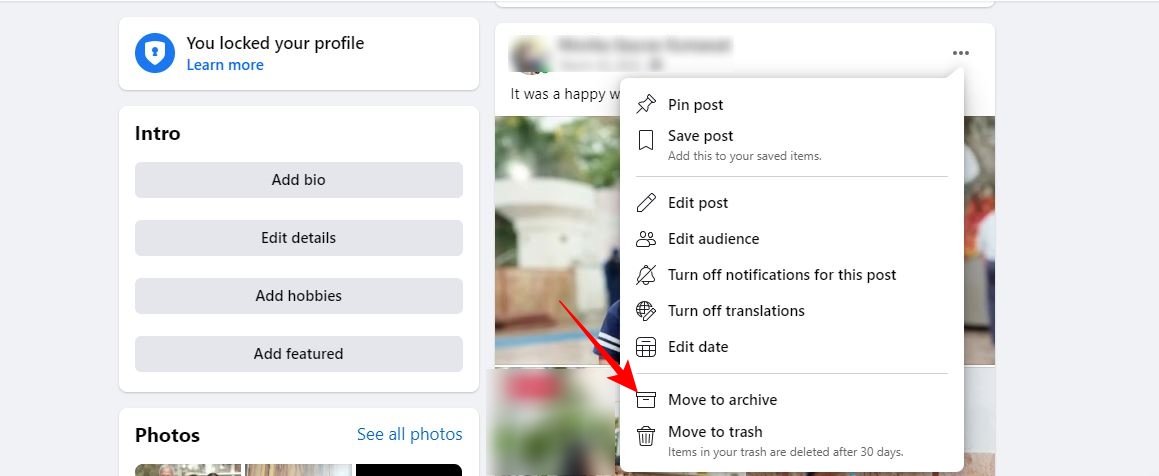
You can follow the same steps to archive a post using Facebook’s Android or iPhone app. Tap the three horizontal dots alongside the post you want to archive and then select Move to archive from the popup options.
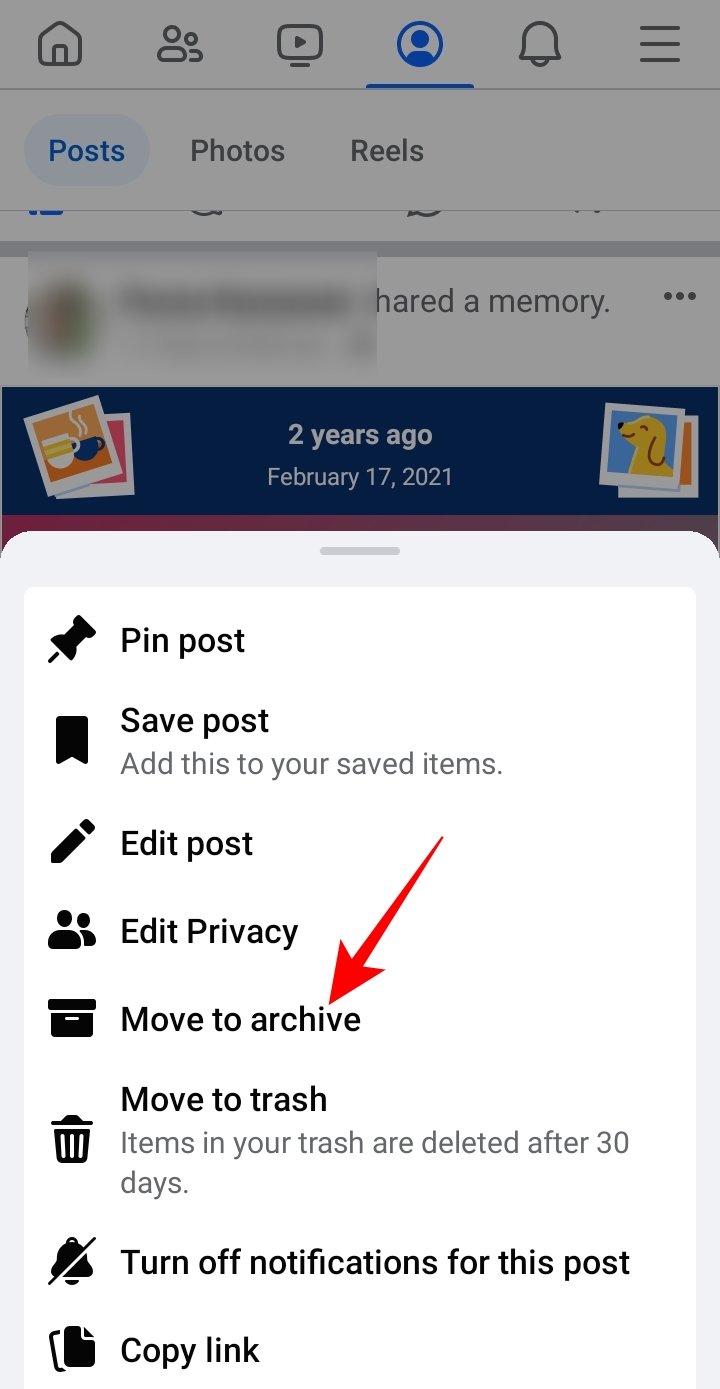
When you unarchive a post, your friends are not notified about it again. Instead, it just appears again on your profile.
How to Unarchive a Post on Facebook Website
When you choose to unarchive a post, it will be again visible to the audience selected for that post before archiving. Also, note that it will bear the date you posted it on Facebook, not the date you unarchived it.
- Visit Facebook.
- Click your profile picture on the top right.
- Go to Settings & privacy.
- Choose Activity log.
- Scroll to the bottom under Activity log and click Archive.

- Go to Posts archive.
- Click three horizontal dots alongside the post you want to unarchive.
- Choose Restore to profile from the popup options.

- Select Restore on the confirmation popup.
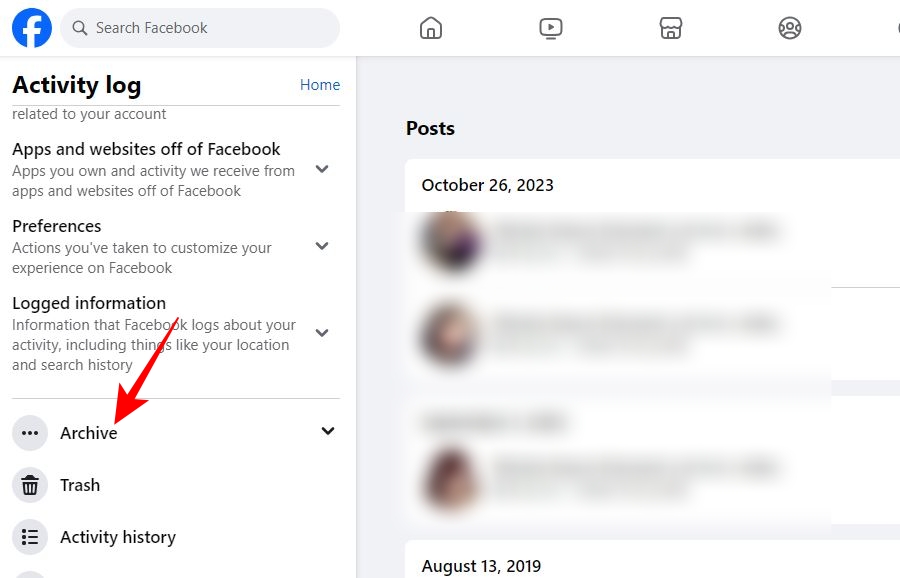
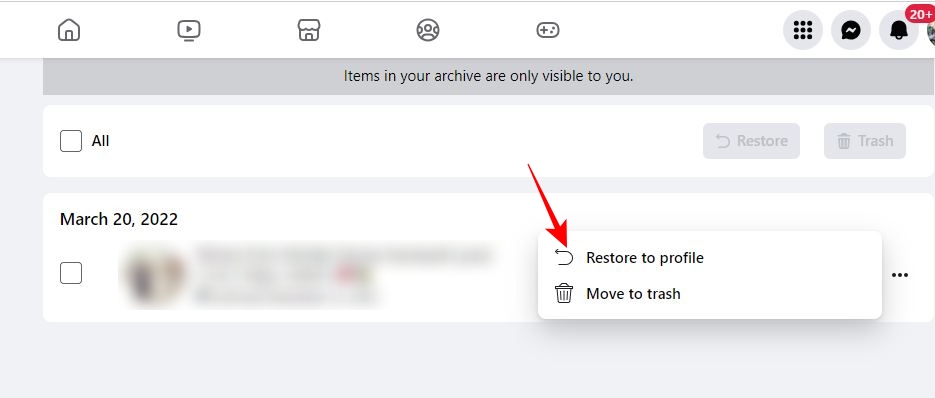
To unarchive all hidden posts, go to Activity log > Archive > Post archive. Check mark All at the top of the Archives page to select all posts and click Restore.
How to Unarchive a Post on Facebook Android and iPhone app
You can also unarchive a post using Facebook’s Android or iPhone app.
- Launch the Facebook app.
- Tap the hamburger menu icon at the top right.
- Scroll down and go to Settings & privacy.
- Tap Settings.
- Scroll down under settings and go to Activity log.

- Go to Archive.
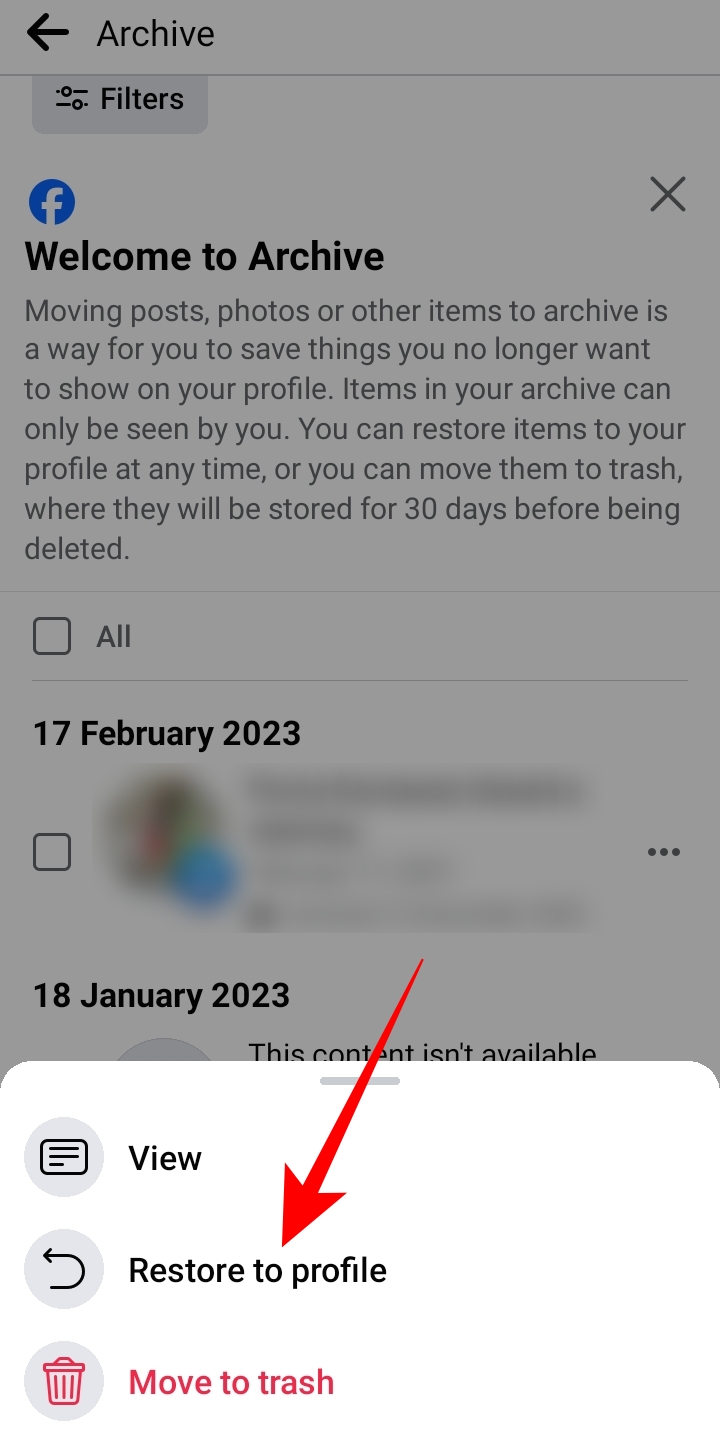
- Tap the three horizontal dots alongside the post you want to unarchive.
- Choose Restore to profile for the popup options.

- Select Restore on Restore to Profile popup.
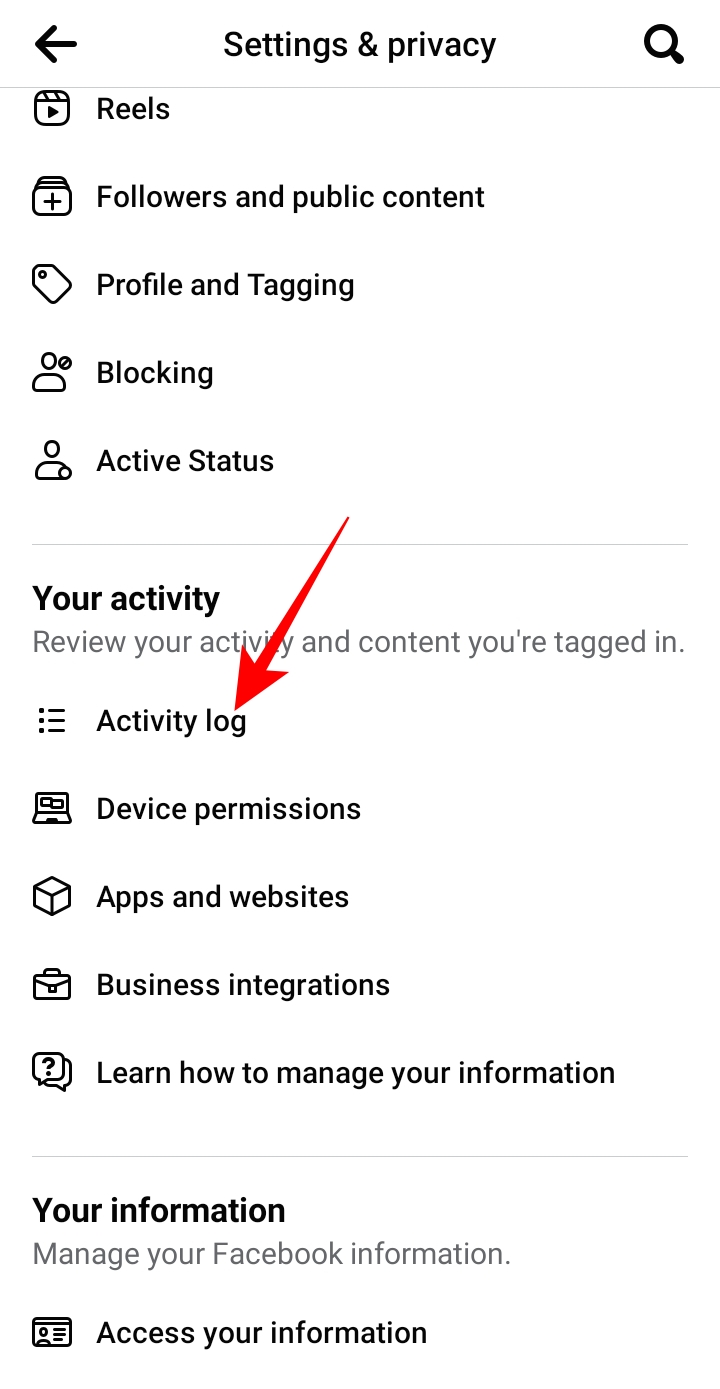
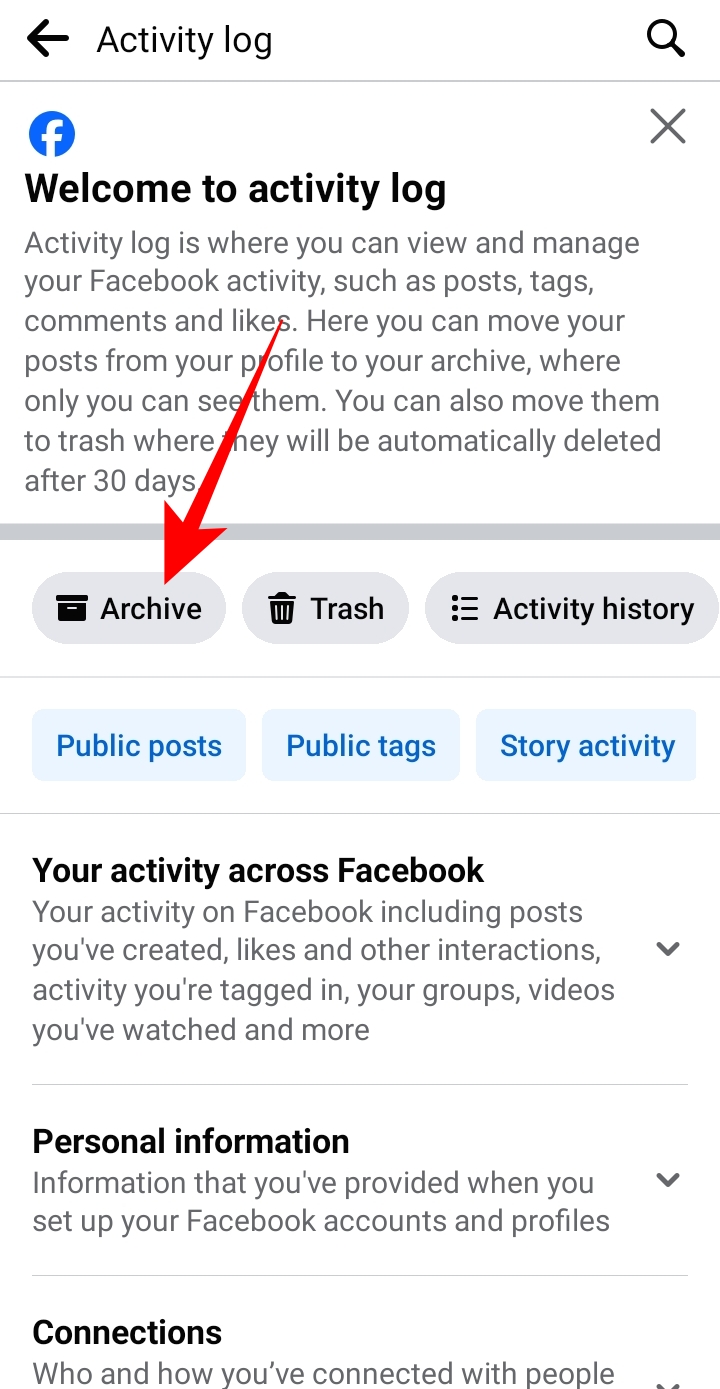
If you can’t find a particular post in the archive, check trash because you might have accidentally deleted it.
How to Restore Post Moved to Trash After Archiving on PC
If you deleted a Facebook post instead of archiving it, you can restore it from Trash. But remember that posts in the trash are there for only 30 days, after which they are deleted forever.
- Go to Facebook on the web browser.
- Click your profile picture at the top right.
- Choose Settings & privacy.
- Select Activity log from the popup options.
- Scroll down on the Activity log menu and click Trash.
- Click on the three horizontal dots alongside the post you want to restore.
- Choose Restore on Restore to Profile popup to confirm your action.
While you can contact Facebook support for account recovery, there is no way to recover a post after 30 days of deletion. So be careful while choosing what to delete.
Restore Memories to Your Facebook Profile
Hiding a Facebook post while still keeping it accessible is only possible through the archive option. Archived posts can be restored anytime, unlike deleted posts, which can be retrieved within 30 days of deletion.
You can view your Facebook profile as a friend to see what posts on your profile are visible to your Facebook friends.
FAQs
Q. Can you still see archived posts on Facebook?
A. The posts you archive will not be visible to you on your Facebook profile. However, you can still view them by going to Settings & privacy > Settings > Activity log > Archive > Post archive to view all the archived posts.
Q. Where is the recycle bin in Facebook?
A. Anything you delete goes to Trash on Facebook. You can go to Settings & privacy > Settings > Activity log > Trash to find all deleted posts.
How to Create or Change Your Email Signature in Outlook
Read Next