How to Know if Your WhatsApp Message Was Read

It can be frustrating to send a message on WhatsApp and not get a reply right away. Are you wondering if the recipient even saw the message? Thanks to read receipts, you can easily know if your WhatsApp message was read or not. This solution works whether you are sending a message in a private conversation or a group chat.
Follow this guide to learn how to find out if the WhatsApp message you sent was read or not.
How to Know if Your WhatsApp Message Was Read
1. Look at the Check Marks
When you send a message in WhatsApp, you’ll notice a checkmark next to it. As you may have noticed, there are different check marks. Here’s what they mean:
A single check means that the message was sent successfully.
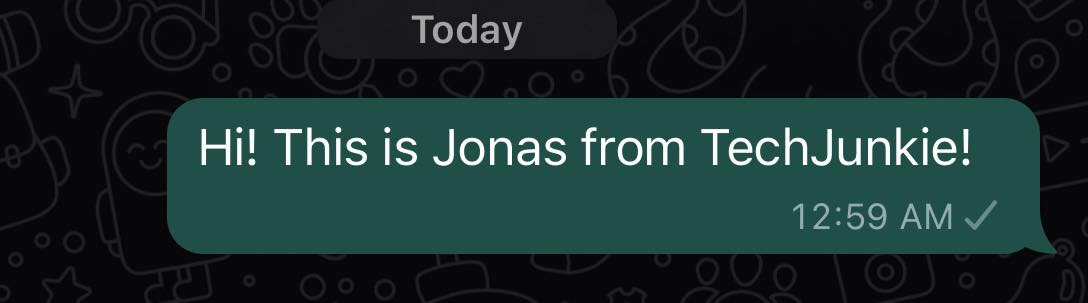
Two checks mean that the recipient received the message.

Two blue checks mean that the recipient has seen your message. If you edit your sent message on WhatsApp, the read receipt will stay the same.

Note: If the message was sent on a group chat, double-check marks will appear once everyone has received the message. Two blue check marks will appear once they’ve all read the message.
2. Check the Message Info Screen
Another way to check if the message was received is by opening the Message Info screen on WhatsApp. Here’s how you open it.
- Open the conversation.
- Tap and hold the message you sent.
- Select Info.

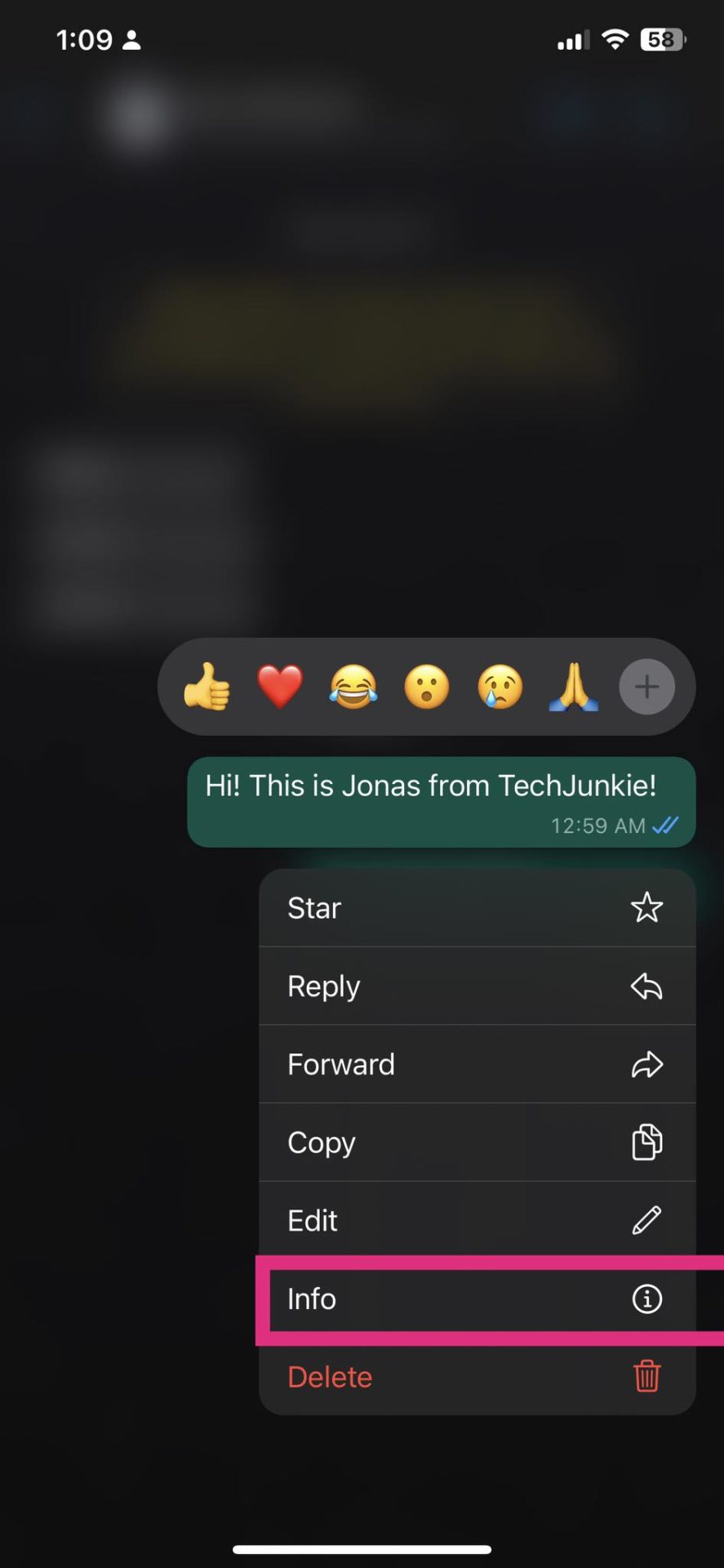
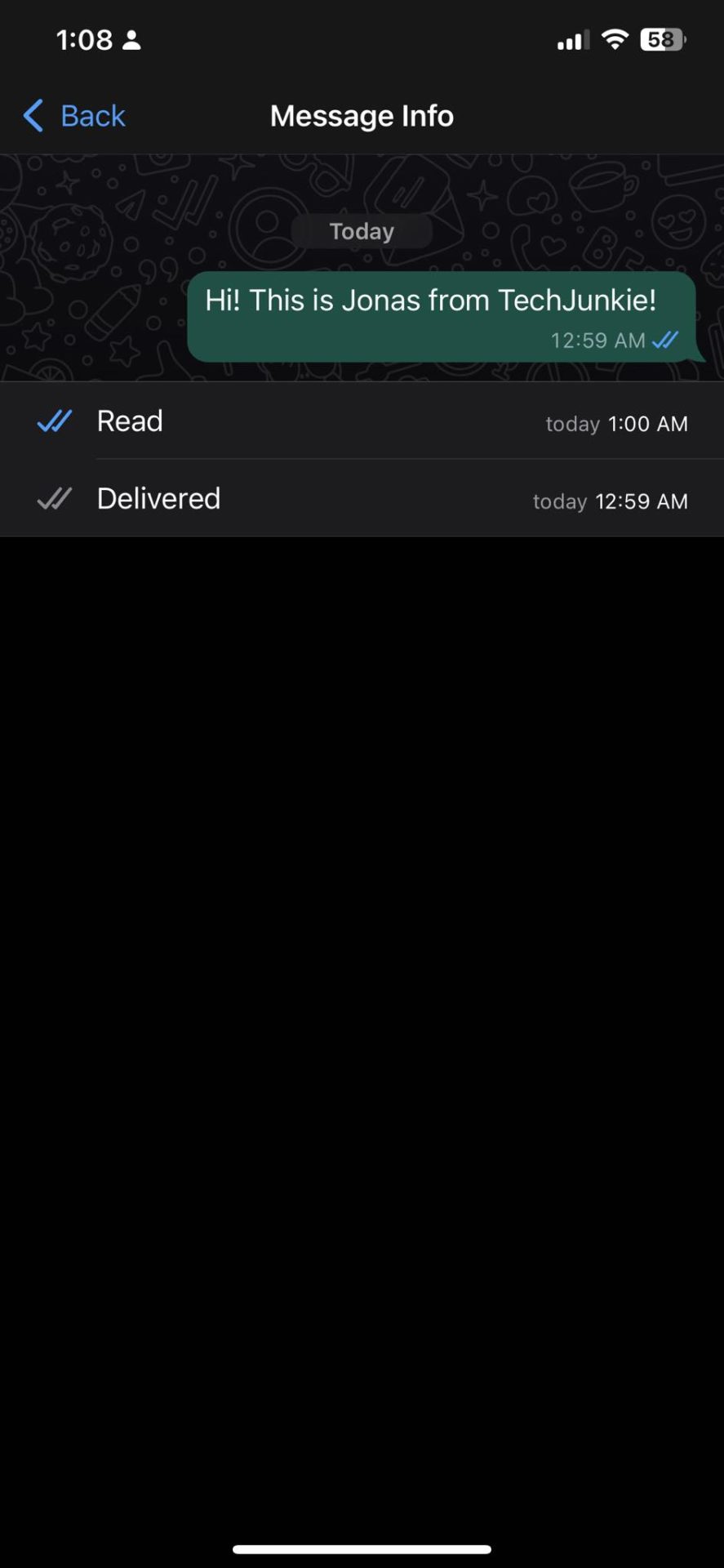
The Message Info method is handy when you want to know the status of a sent message in a group conversation. You will get a breakdown of the receipts who have read the message and those to whom the message was delivered, but they are yet to read it.
Below is an example of the Message Info screen. It’s more detailed than the step above, as here, you can see when the message was received and read.
Why are Blue Check Marks Missing for Some WhatsApp Messages?
Even if you follow the steps above, there are instances when you still won’t see the check marks next to your message. There are a few reasons why this is happening.
One potential cause could be connection issues from either you or the recipient. If you’re not connected to a stable network, message receipts might not appear correctly. Once the connection improves, this problem will fix itself.
Another possible reason you do not see the blue checkmark is that the recipient has disabled read receipts on WhatsApp.
There is another reason, but it is a bit complicated. Assuming read receipts are turned on, if the person blocks you after the message is sent, the blue tick will not appear. Though the person can read the message, no blue check will appear on your end.
You will also not get a blue tick if the message recipient has deleted their WhatsApp account.
How to Turn Read Receipts On/Off on WhatsApp
If you turn off read receipts on WhatsApp, you and the people you talk to won’t see any blue check marks. You might’ve accidentally turned it off before you don’t see read receipts. Here’s how you can enable or disable it.
- Open WhatsApp
- Tap the gear icon or three-dot menu to open Settings.
- Select Privacy.
- Toggle off Read Receipts.
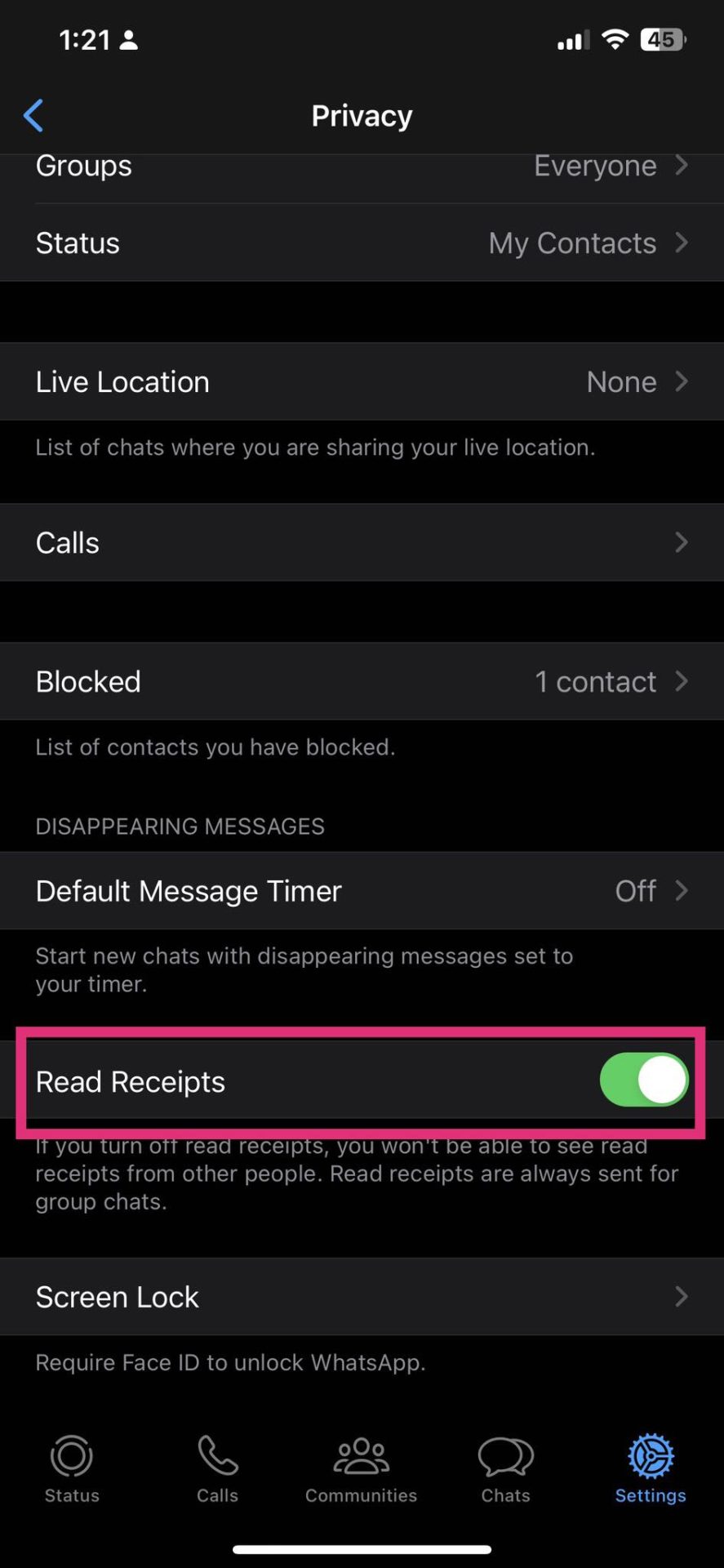
Note: You cannot disable Read receipts for WhatsApp group chats.
No More Stressing Out Over WhatsApp Messages
With this, you no longer need to worry about your sent messages in WhatsApp. We highly recommend turning on read receipts as it can be more convenient for you and your friends. However, if you’re worried about getting spam messages and calls, here’s how you can block unknown numbers on Whatsapp.
FAQs on How to Know if Your WhatsApp Message Was Read
If you come across this problem, it’s because the recipient of the message has turned off their read receipts.
This could be an issue with your app or your connection. Try checking your internet connection first. Try restarting your app next. If this doesn’t work, clear WhatsApp’s cache or reinstall the app entirely.
How to Sign Up for Instagram Threads
Read Next