How to Log Out of Facebook Messenger
Facebook Messenger allows you to chat with people who follow you on Facebook and connect with individuals around the world hassle-free. While logging in and using the Messenger app is fairly easy, you might struggle to sign out of the service. That’s because there is no dedicated logout button in the Messenger app. So, how do you log out of Facebook Messenger? Is there a separate way to sign out of Facebook Messenger on Android and iPhone? Follow this guide to know more.
How to Log out of Facebook Messenger on Android and iPhone
As already mentioned, the Messenger app doesn’t have the option to log out directly from the app. Instead, you need to sign out of your existing session from the Accounts section.
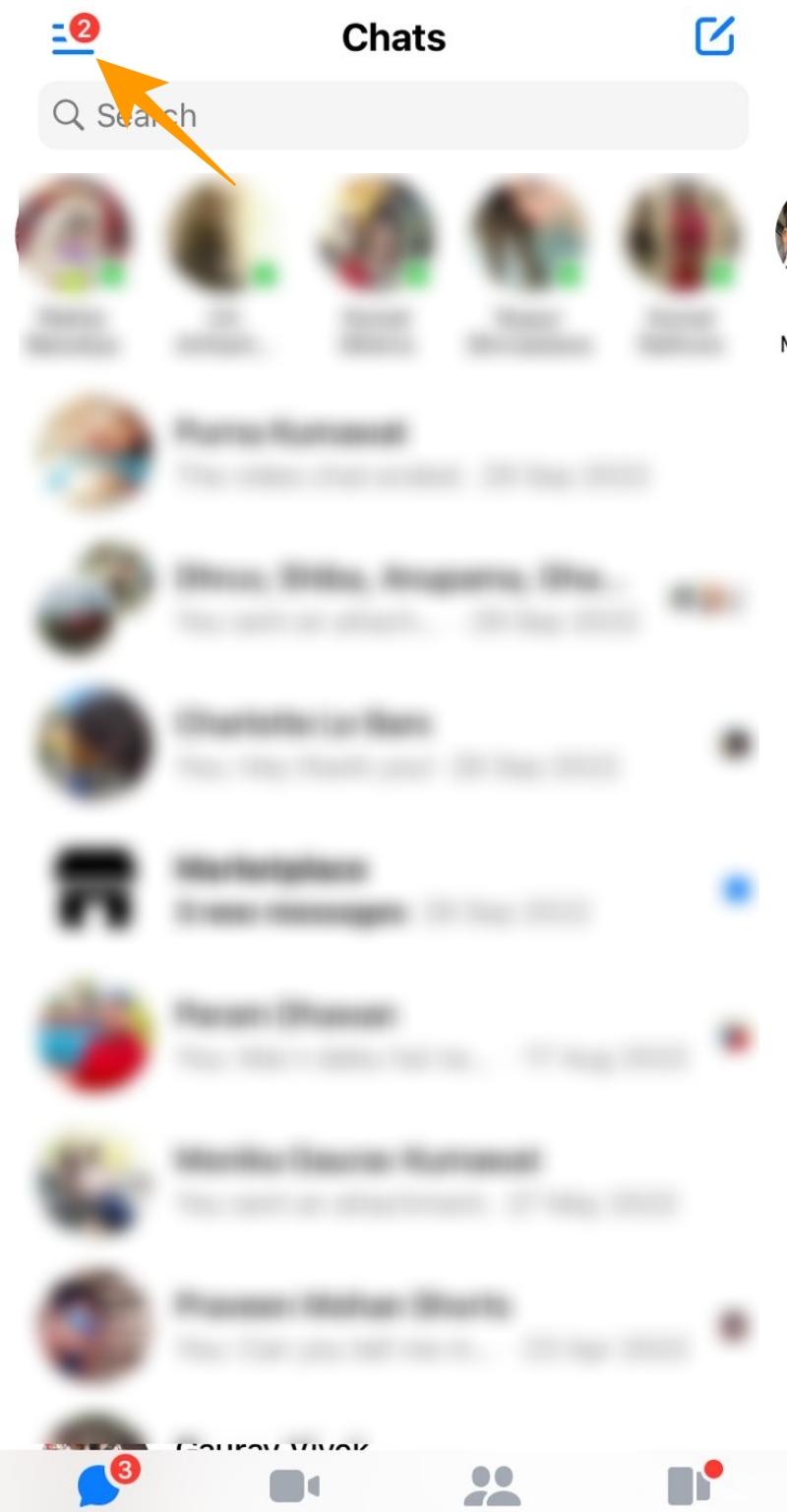
- Launch the Facebook Messenger app and tap the three vertical lines at the top left.

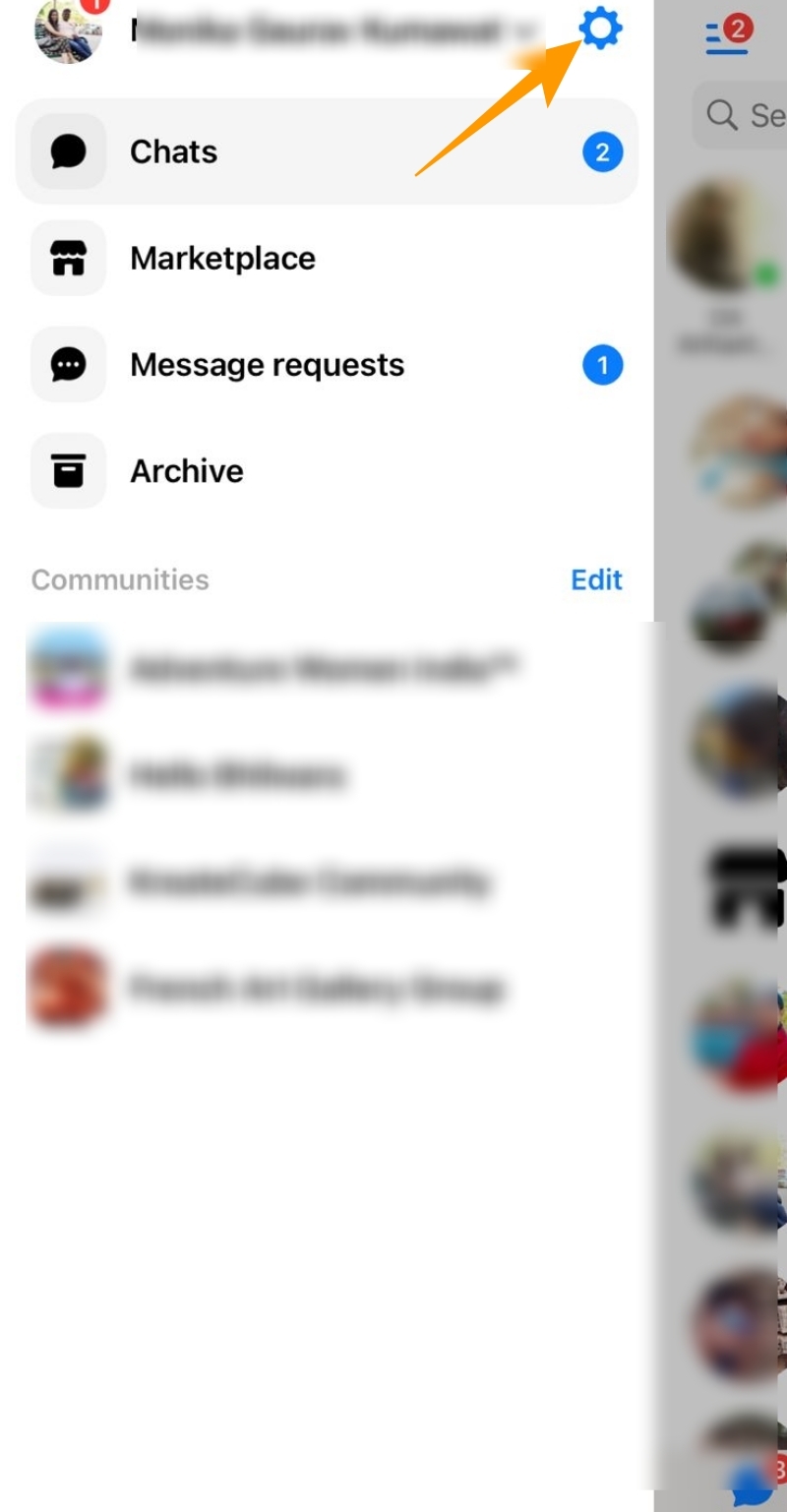
- Tap on the gear icon at the top right.
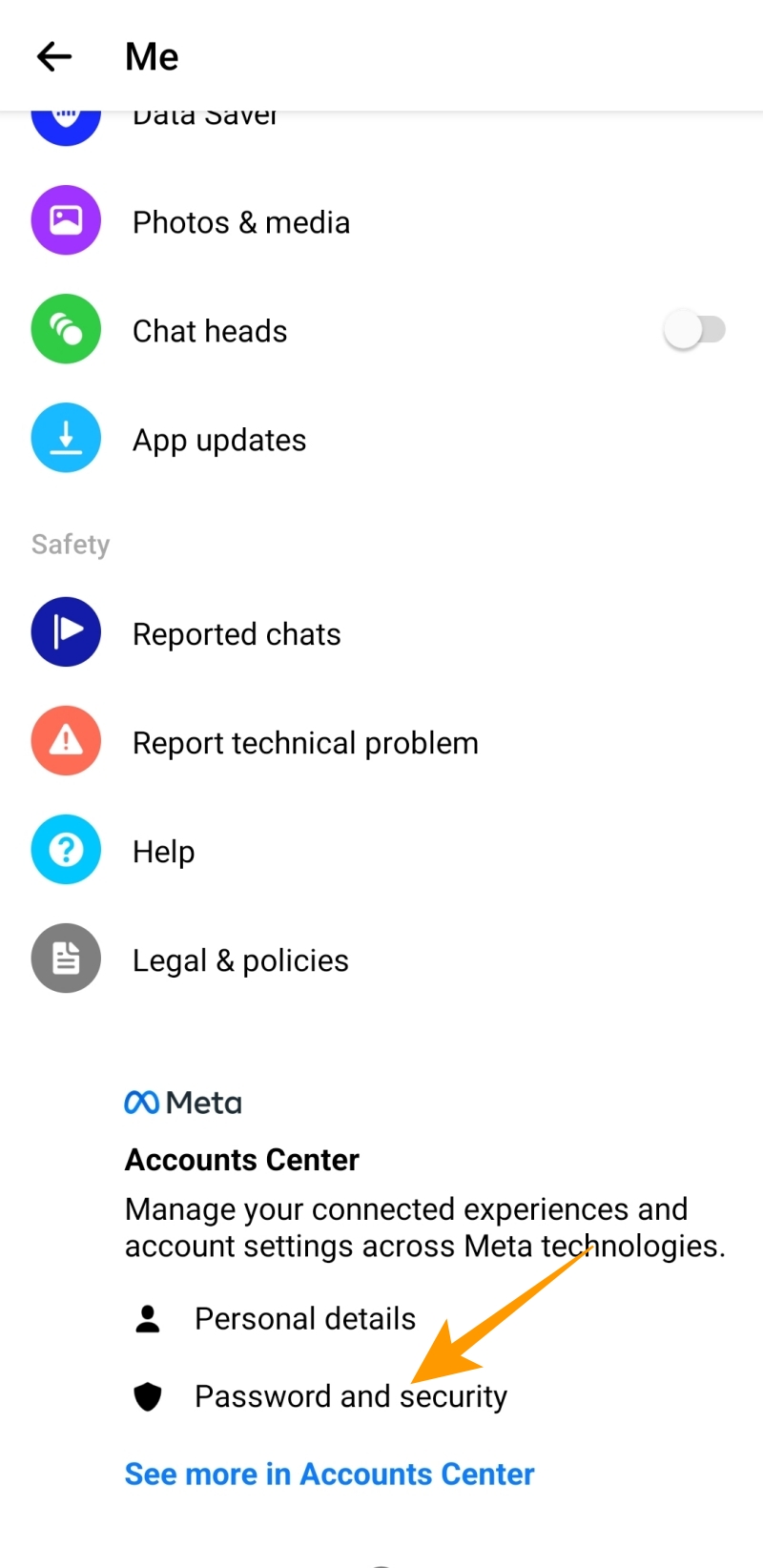
- On the next screen, scroll down to find the Password and security option under Accounts Center.

- Under Accounts Center, tap Password and security in the Account settings section.
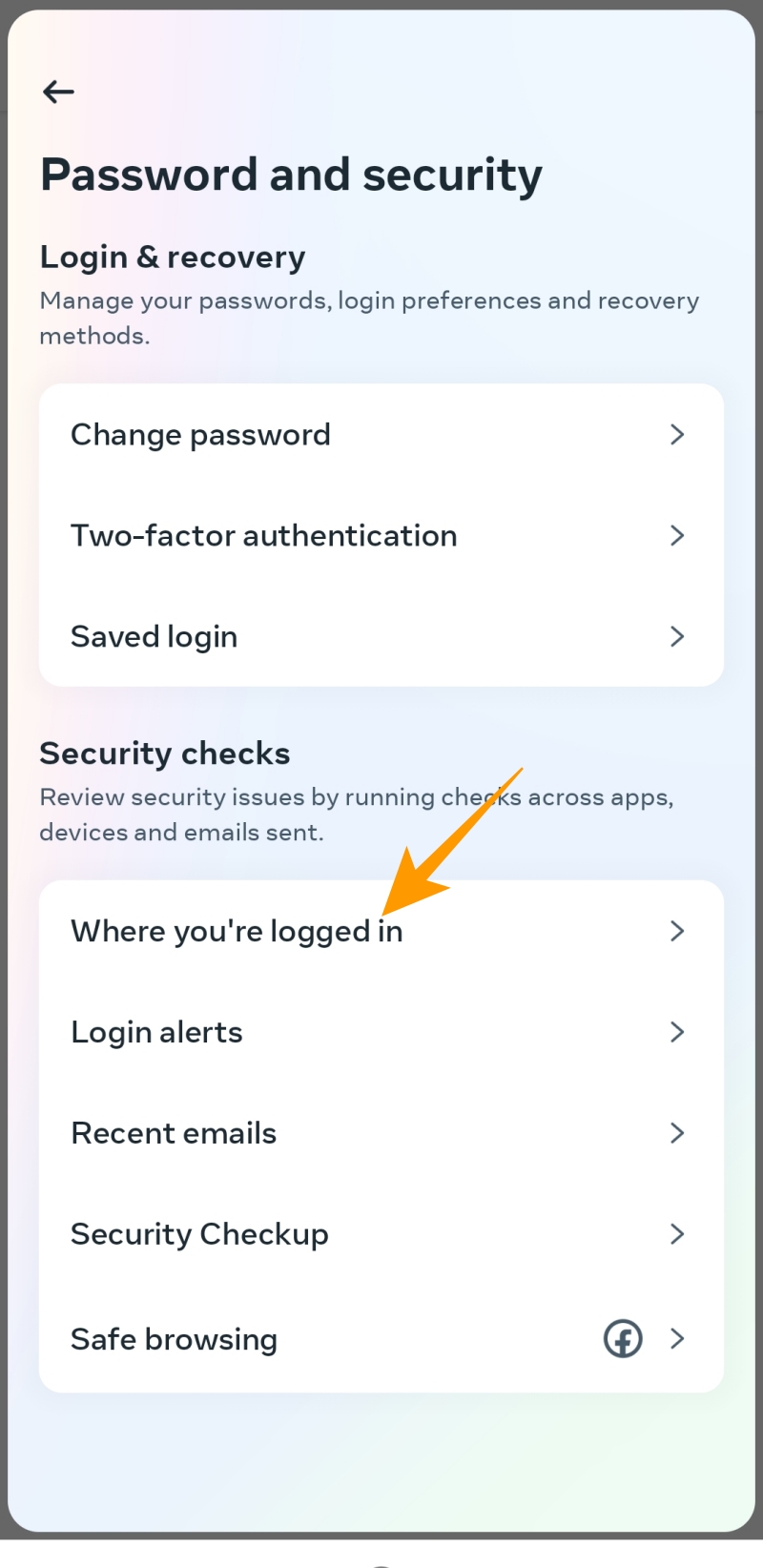
- On the next screen, tap Where you’re logged in under Security checks.
- Under Account login activity, tap the device from which you want to log out of Messenger.
- Tap Log Out and confirm your action by choosing the Log out option from the Are you sure? popup.
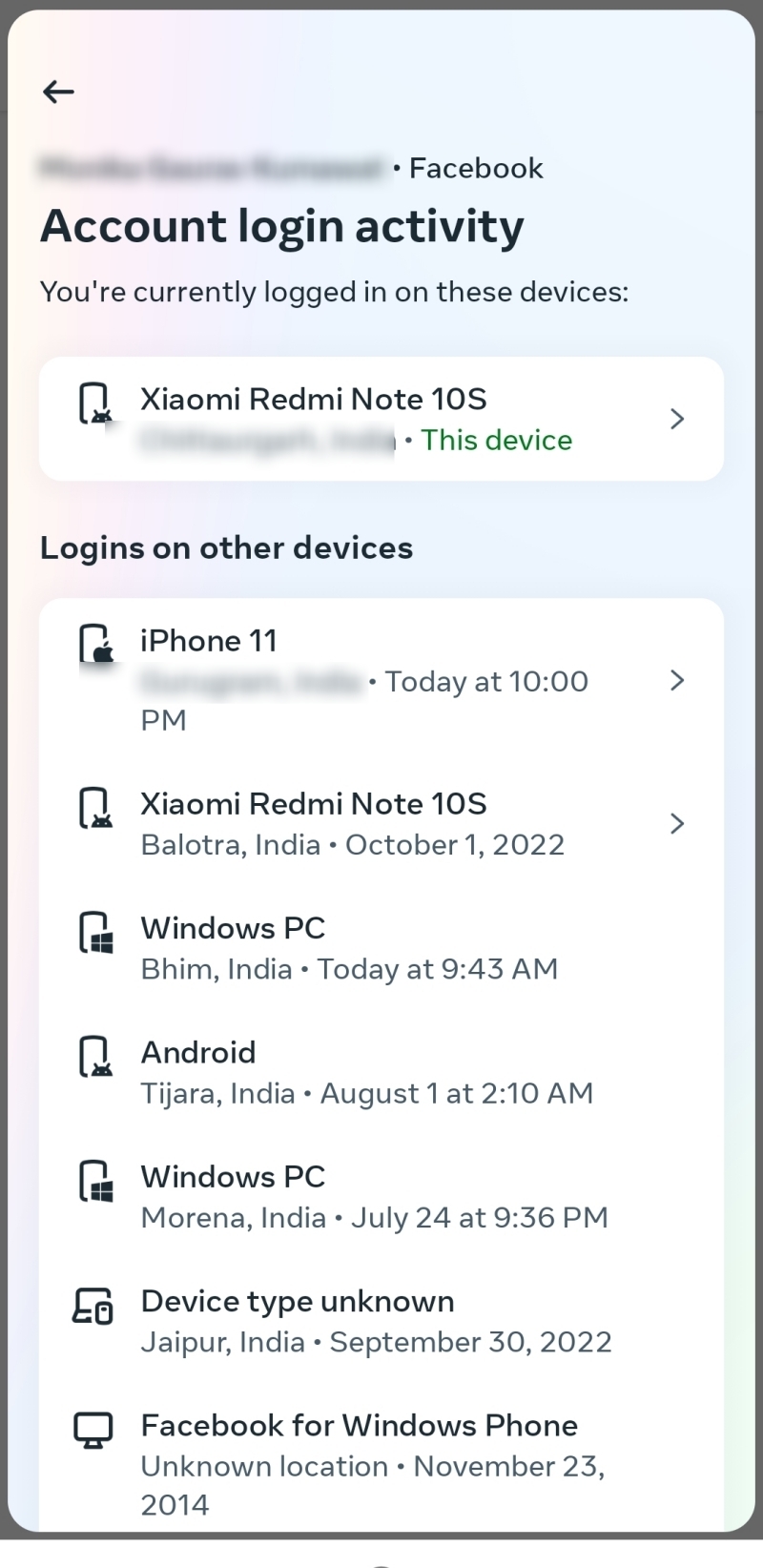
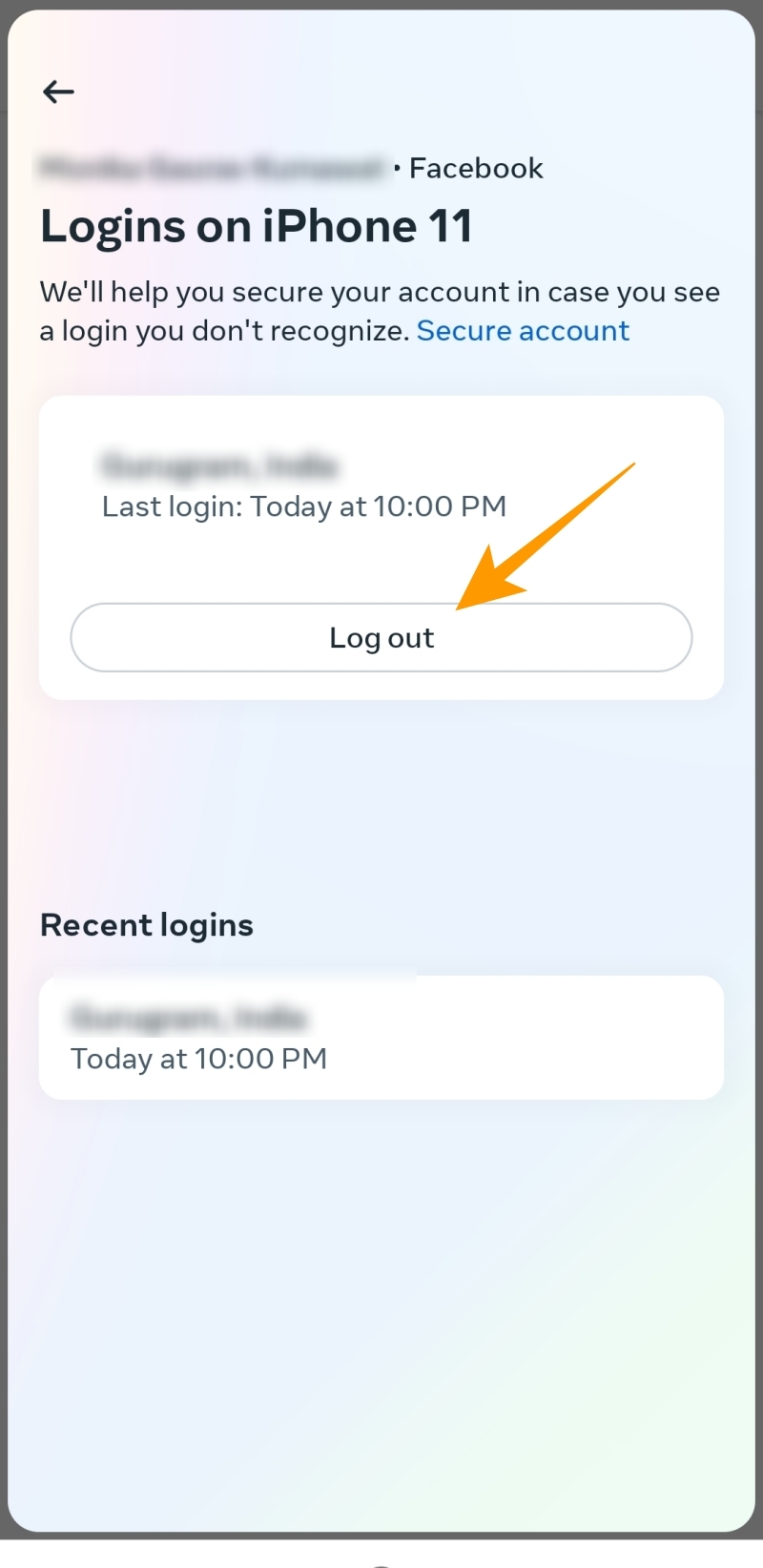
Alternatively, you can uninstall or clear the data of the Messenger app on Android or iPhone to log out of the service. But there is one downside of this tip. The entire app cache is deleted when you clear the data. However, it won’t deactivate your Messenger account or erase any conversations from your account itself.
How to Log Out of Messenger From the Facebook App
It is possible to log out of Messenger on your phone using the Facebook app. Here’s how:
- Tap on three horizontal lines given at the top right of the app.
- Scroll down and tap Settings & Privacy; from the drop-down options, select Settings.
- On the next screen tap on Password and security to visit Meta’s Account Center.
- On Meta’s Account Center, tap Password and security.
- Tap on Where you’re logged in under the Password and security section.
- On the next screen, you will find the list of devices on which you are currently logged in to the Facebook or Messenger app.
- Select the device from which you want to log out of the Messenger app.
- Tap Log out option on the next screen to log out of the Messenger app on the respective Android or iPhone.
- On the Are you sure popup, tap LOG OUT to confirm your action.
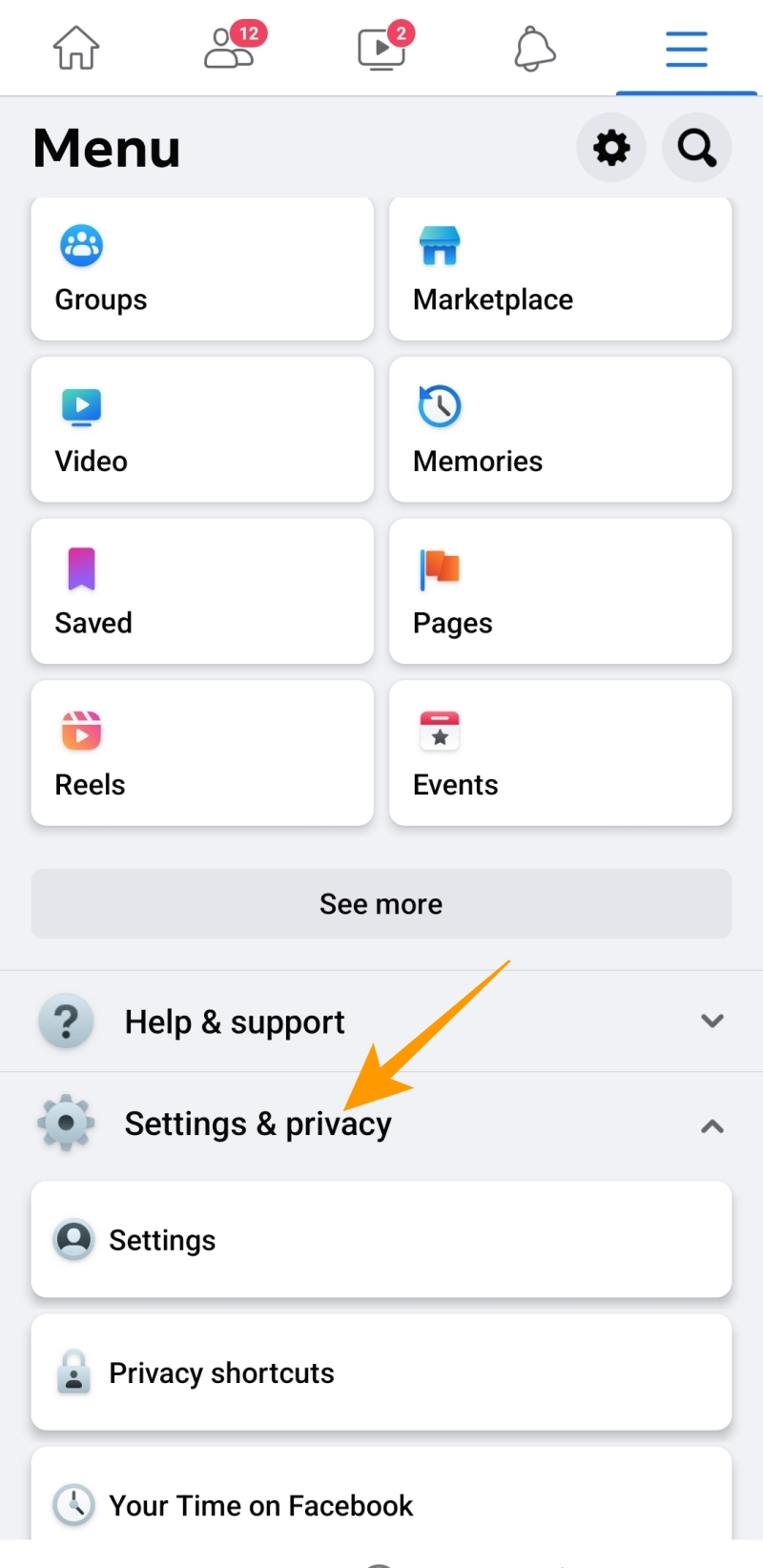
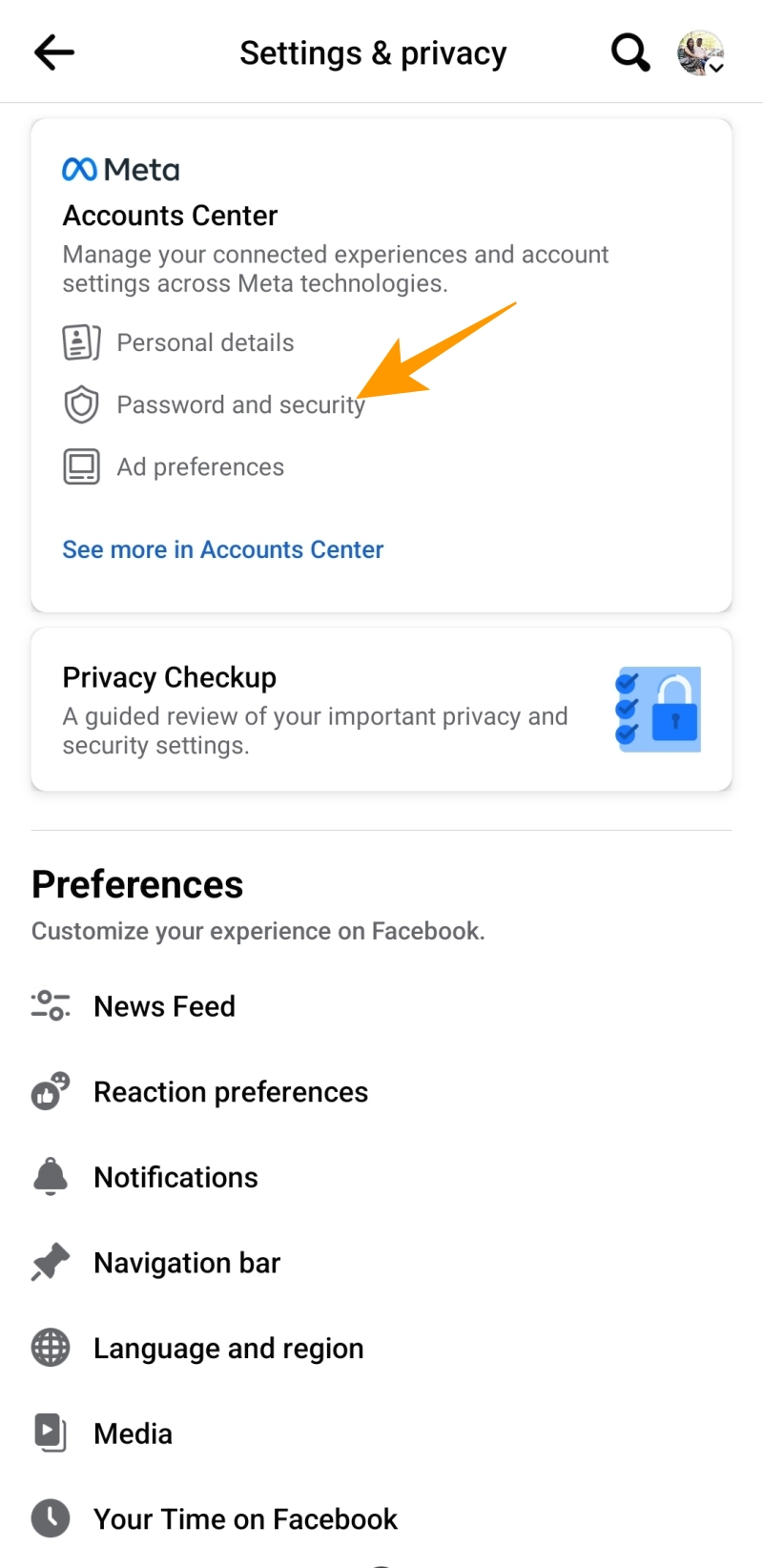
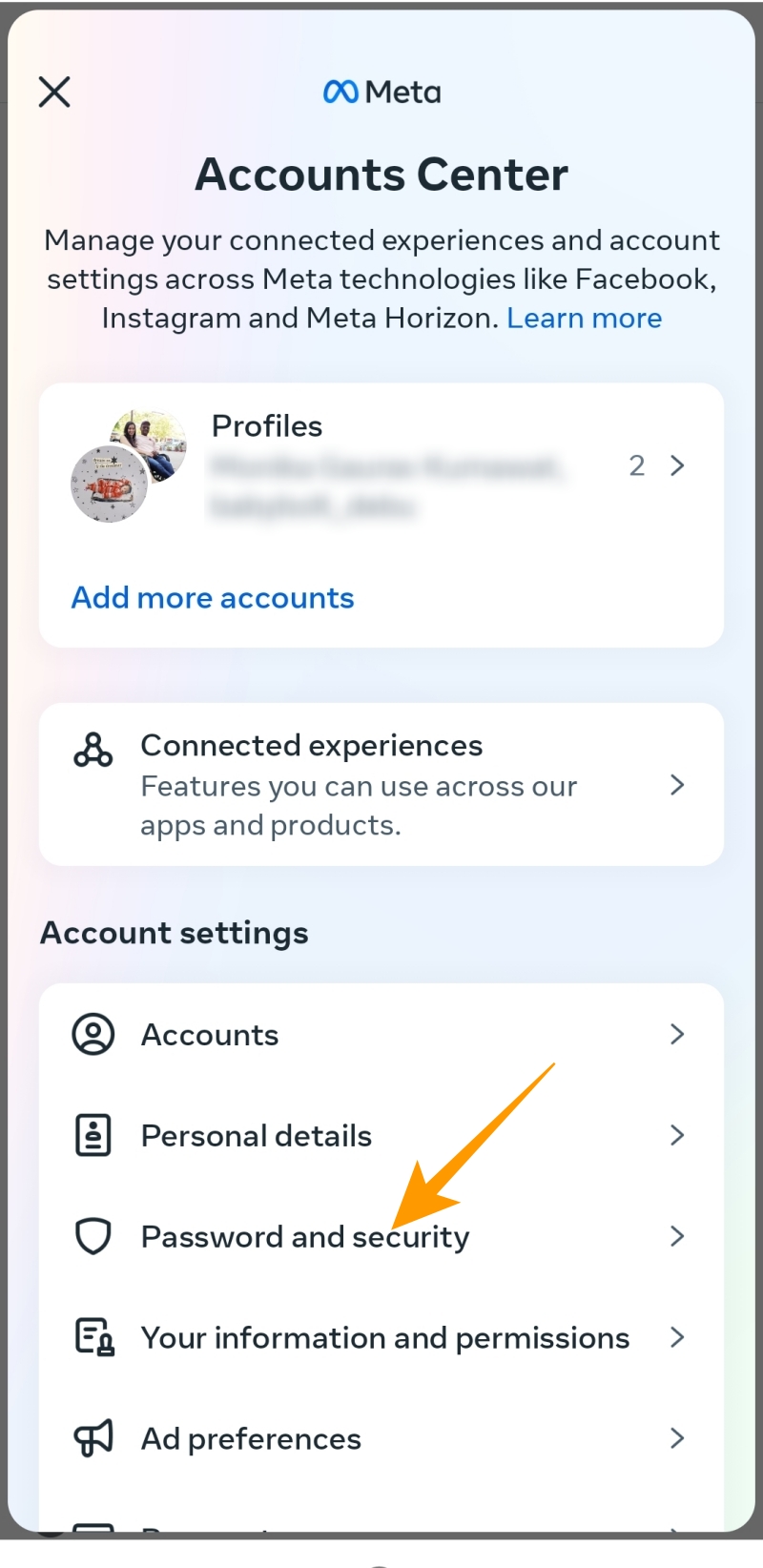
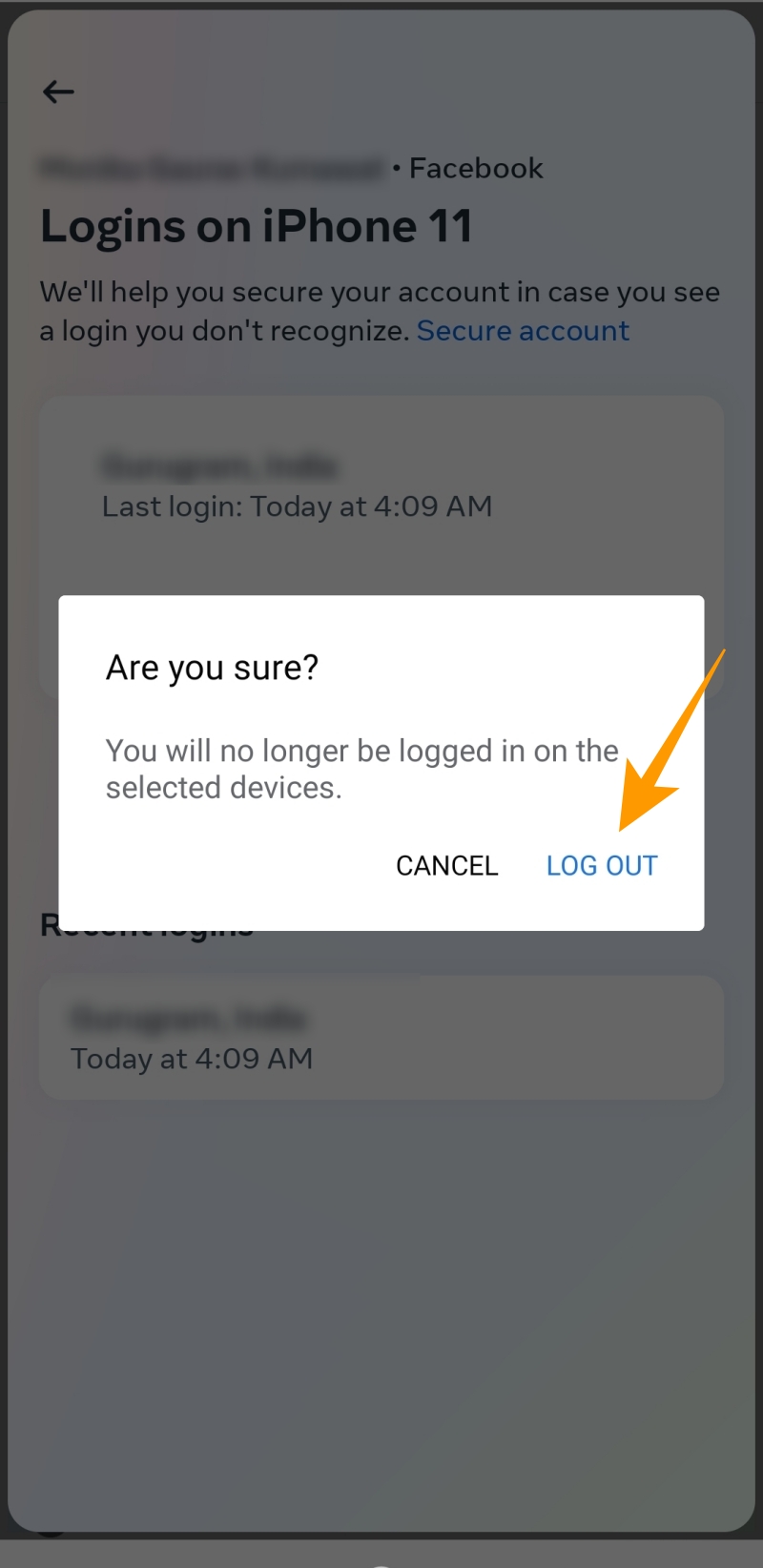
This way, you will only be logged out from the particular device you want to log out from. If you want to log out of Facebook Messenger from all devices, including PCs and smartphones, you will find the option solely on Facebook’s website.
You can continue to use Facebook without messenger even after logging out from the service.
How to Log Out of Messenger From All Your Devices Using the Facebook Website
The easiest way to log out of Messenger is through its mobile app itself. But what if your phone is lost or you don’t remember the devices on which you have signed into the service? In such cases, you can use the Facebook website to sign out of Messenger from all your devices.
Simply log in to Facebook’s website through your web browser. Once you are logged in, open the Settings page and follow the steps given below:
- In the Where you’re logged in section, tap the See more option to find the list of all devices you have logged in.

- In this list, look for the device from which you want to log out of Messenger.
- Once you find the device, click on three vertical dots next to it and click Log out option from the newly appeared popup.

- If you want to log out of all devices, simply click on Log out of all sessions option given at the bottom of the list.

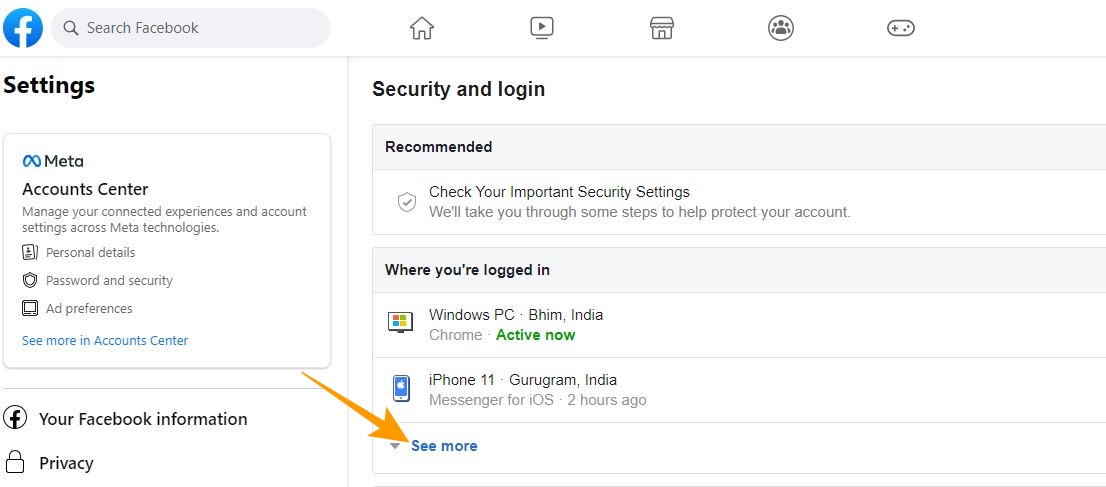
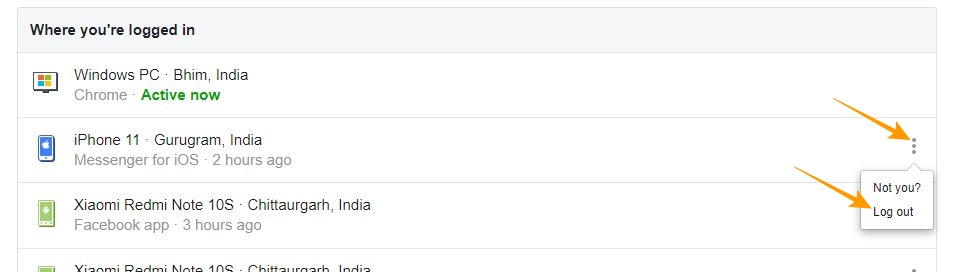
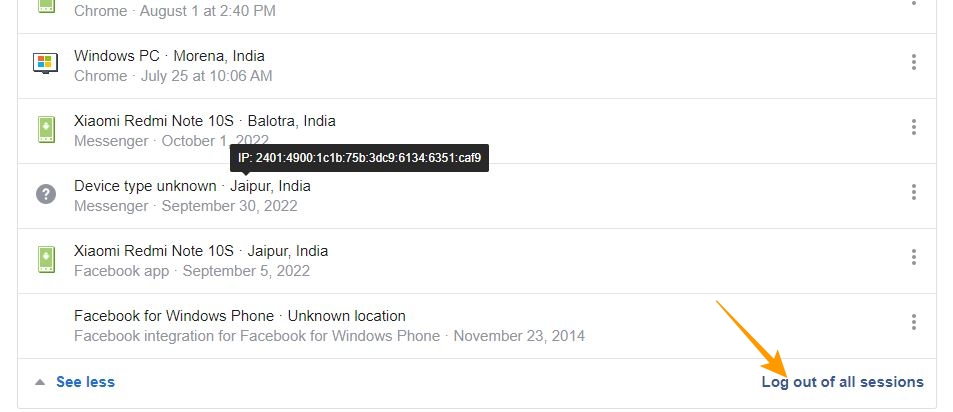
Once you click on log out of all sessions, you will be logged out of all smartphones and PCs you are actively logged into.
Conclusion
Messenger is the most convenient chatting app that lets you indulge in group video calls, share social media content, and even track someone’s location in emergencies. The only downer is the inconvenience of logging out of the app. However, there can be times when you may want to take a break from the app or simply want to log in to another account. In such situations, you can count on the log out methods mentioned in this article. So, try them out, and don’t forget to share which method worked best for you.
FAQ
A. Many people struggle to log out of Messenger because there is no dedicated log out option in the main menu of the app. To log out of Messenger, open Settings & privacy > Settings > Security and login. Under Security and login, sign out of any device from the Where you are logged in section.
A. To log out of Messenger without using the Facebook app, simply open Account Center in the Messenger app and tap on Password and security. On the next screen, you can find all logged-in devices under the Where you are logged in section. Tap the device you want to log out from and tap log out option on the next screen.
How to Change the Wi-Fi of Your Amazon Echo
Read Next