How to Send Large Videos and Files on WhatsApp

Besides sending messages and making calls, one can use WhatsApp to transfer videos, files, and even disappearing media. For that reason, some people even use the platform for business-related purposes. WhatsApp lets you send files up to 2GB in size, but this might still not be enough, especially if you’re planning on sending videos. This post will share how you can send large videos and files on WhatsApp.
There are a few workarounds to make file sending easier on the platform. Here’s what you can do to send multiple or even large videos and files on WhatsApp.
Share Files Up to 2GB Directly on WhatsApp
If the file you’re sending is large but isn’t above 2GB, you’ll have no issues sending it directly on WhatsApp. Here’s how you can send your file.
- Open WhatsApp and select the conversation you want to send the file to.
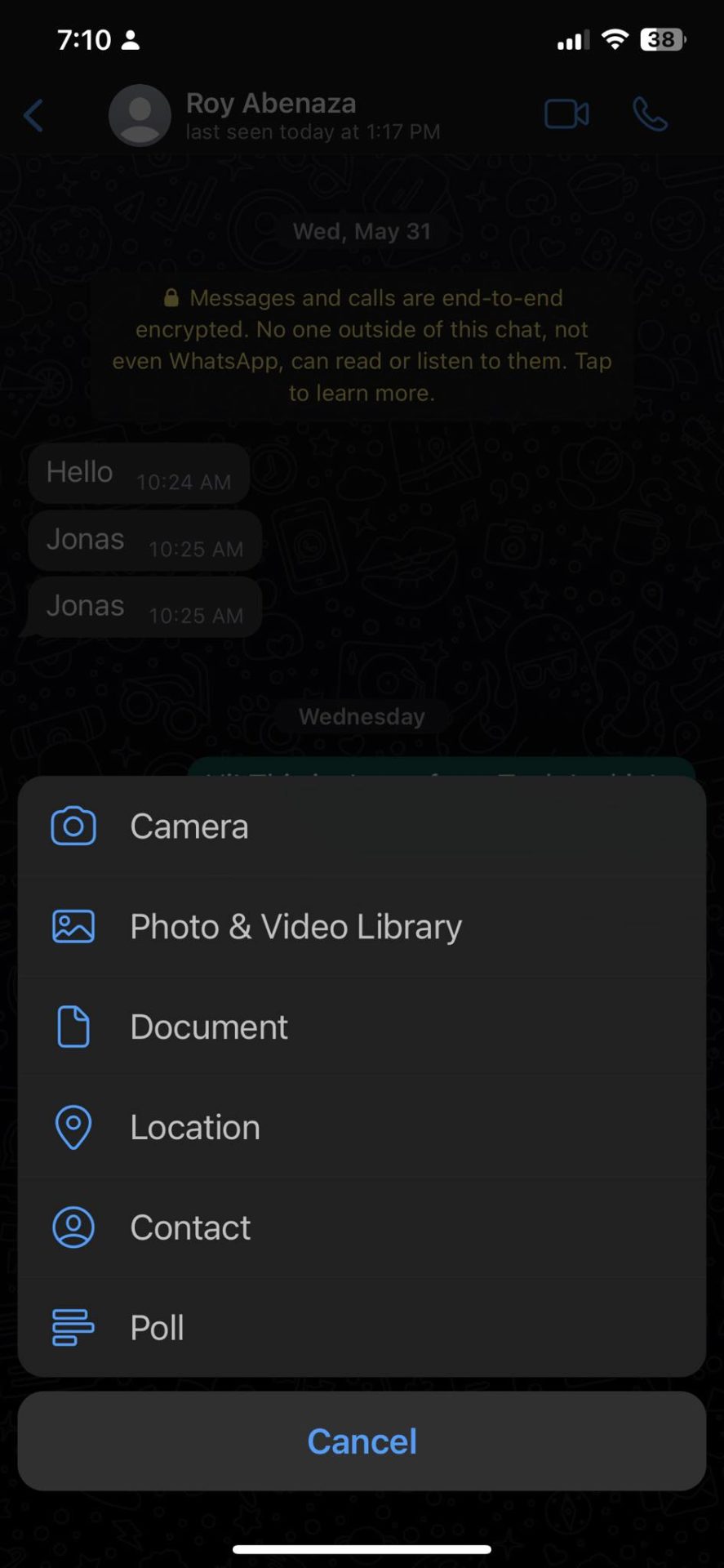
- Tap the plus icon at the bottom left.
- In the pop-up menu, select Document or Photo & Video Gallery, depending on what you need to send.

- Tap the send button at the lower left once done.
Remember you can delete WhatsApp messages after they are sent, so you can always delete any shared file to prevent the recipient from downloading it. However, this will only work as long as the receiver has not already downloaded and saved the file.
Compress Videos
There is a bright chance that if the file is large, it will be a video. If that’s the case, one of the best ways to send it through WhatsApp is by compressing the video first. There are a few video compressor options, but one of the best is Video Compressor Panda Resizer.
It’s a handy app that lets you customize the video’s aspect ratio to reduce the file size. The downside is that the video’s quality will get degraded as you compress it. As such, only use this method if the quality isn’t an issue or compression doesn’t affect the original video by a large margin.
→ Try Video Compressor Panda Resizer
Share Files Through Google Drive or iCloud or Wetransfer
One of the easiest ways to share large videos and files through WhatsApp is by using Google Drive or iCloud. Both services are free, but you’ll need to pay extra if you run out of space. The same applies to WeTransfer.
Send File via Google Drive
If you are an Android user, Google Drive is the best way to share large files over WhatsApp. Part of your Google account, Google Drive offers 15GB of free storage space. You can get as much as an extra 2TB of storage space with Google’s subscription plans starting at $1.99 per month.
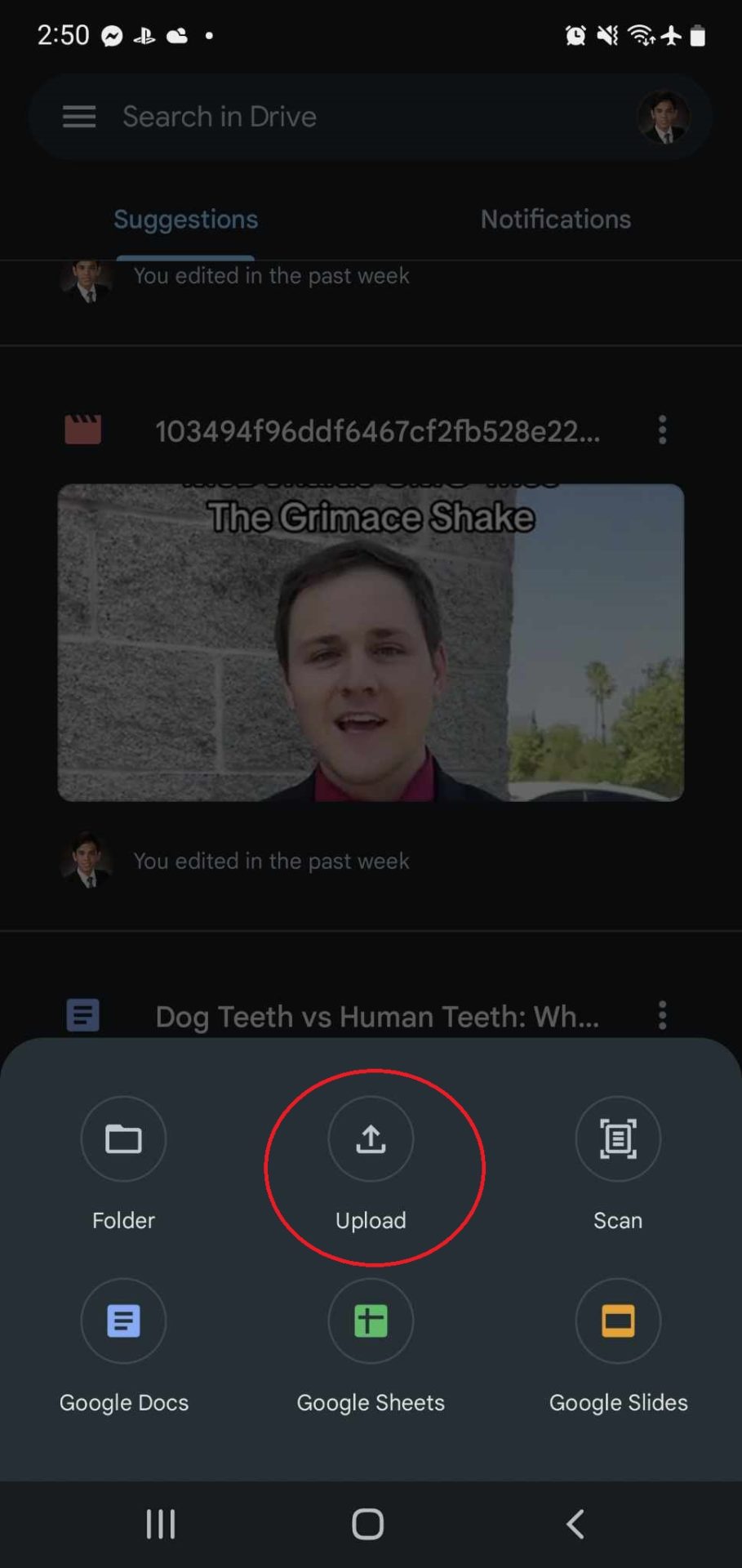
- Open Google Drive and click the plus button at the bottom right.
- Tap Upload.

- Select the files you want to share and tap Select once done.
- Head to Recent to see the file you just uploaded.
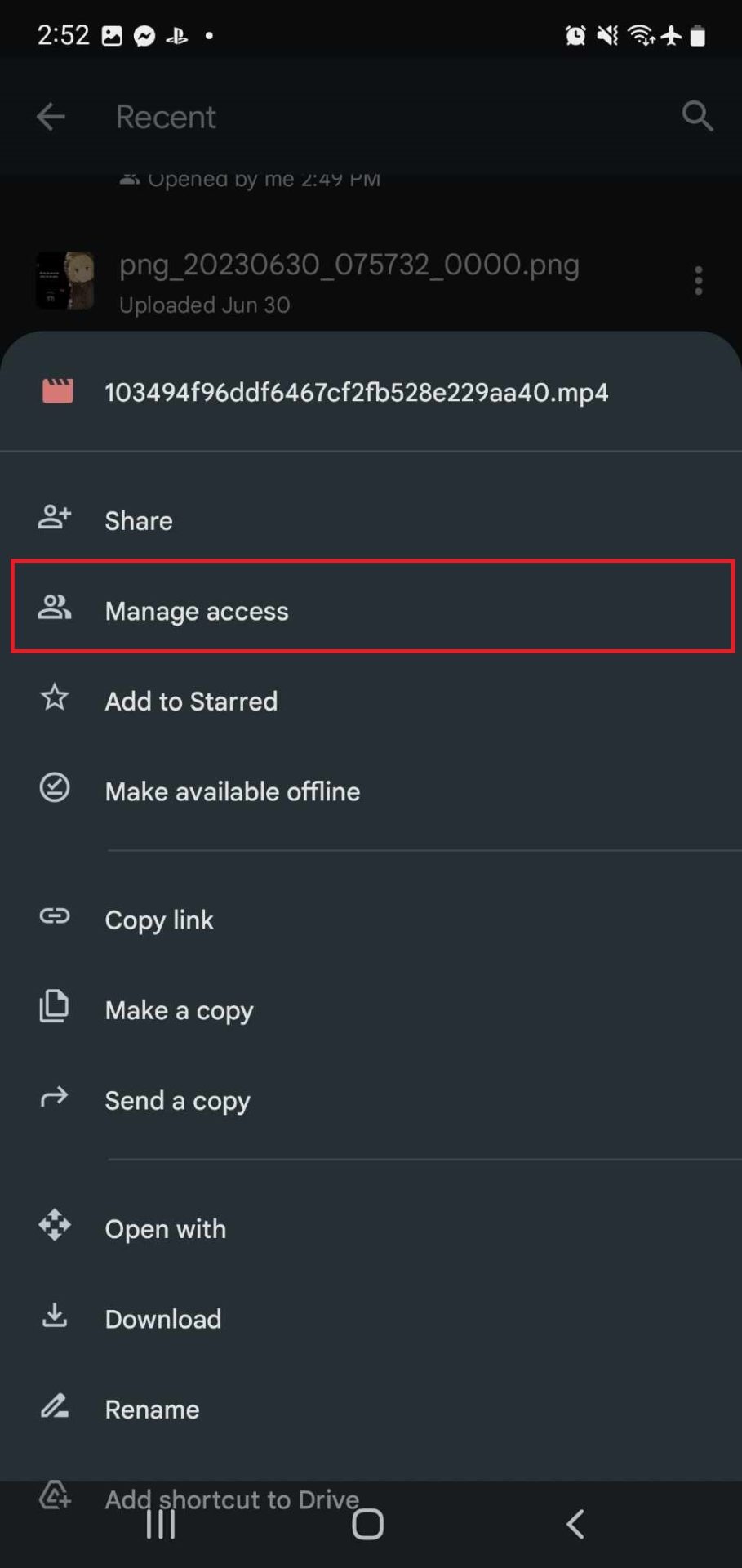
- Tap on the three-dot icon on the right side.
- Select Manage access.
- Tap the plus button at the top right and type the email of the person you want to share it with. Or, you can select Anyone with the link under General Access.
- Tap the link button to copy the link.
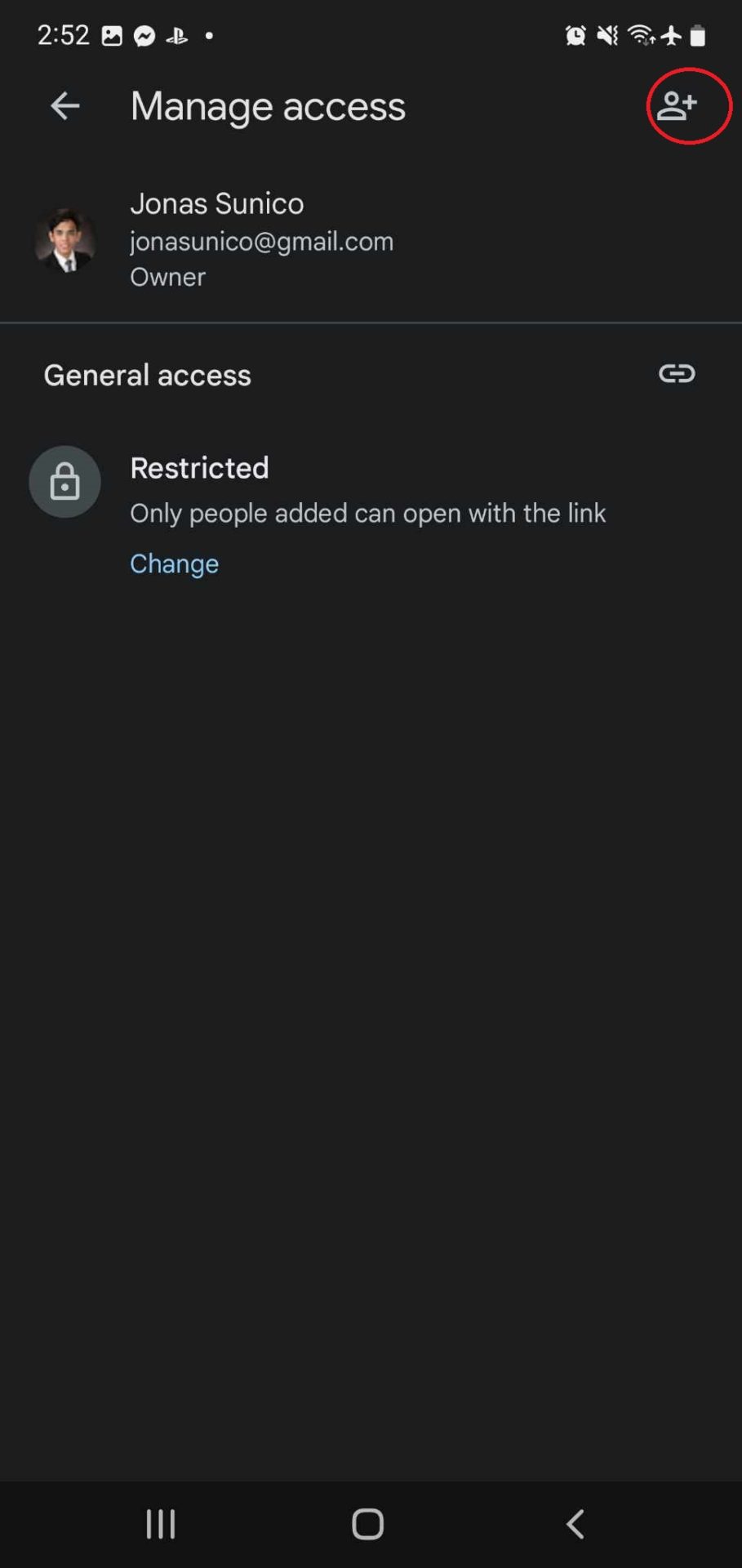
Once you have the link, you can share it with anyone on WhatsApp. If the video is private and confidential, we suggest restricting access to the file to only those added to the document. You can add a file to multiple Google Drive folders if that makes file sharing with multiple groups easier.
Send Files via iCloud on iPhone
iPhone users can take advantage of iCloud Drive to transfer large files through WhatsApp. Unlike Google Drive, you only get 5GB of free space with an iCloud account. This space is shared with your iCloud backup and other Apple services, so your free space is going to be lower. You can view your iCloud Photos and delete unwanted files to free up space.
Alternatively, you can buy an extra 50GB of storage for $0.99 per month. The 2TB package will cost you $9.99 per month.
- Open the Files app.
- Tap Browse and select On My iPhone.
- Select the ellipsis icon at the top right and tap Select.
- Check the files you want to send.
- Once done, tap the ellipsis icon on the bottom right and tap Copy X items.
- Go back to the previous menu and select iCloud Drive.
- Long-press the screen and tap paste.
- Tap the file and then select Collaborate located under the file name.
- Select WhatsApp and choose the contact to send the link to.
Once you have the link, send it to the recipient on WhatsApp.
Share Files Through WeTransfer
Another alternative you can try if you don’t have space on Google Drive or iCloud anymore is WeTransfer. The file-sharing platform gives you 2GB to use on a free account. If you subscribe to the $10 Pro plan, you can send up to 200GB. The $19 Premium plan puts no limit on the size of the files you share. Here’s how you can use it.
Like Google Drive and iCloud, you can also share files through WeTransfer links.
- Open the WeTransfer home page.
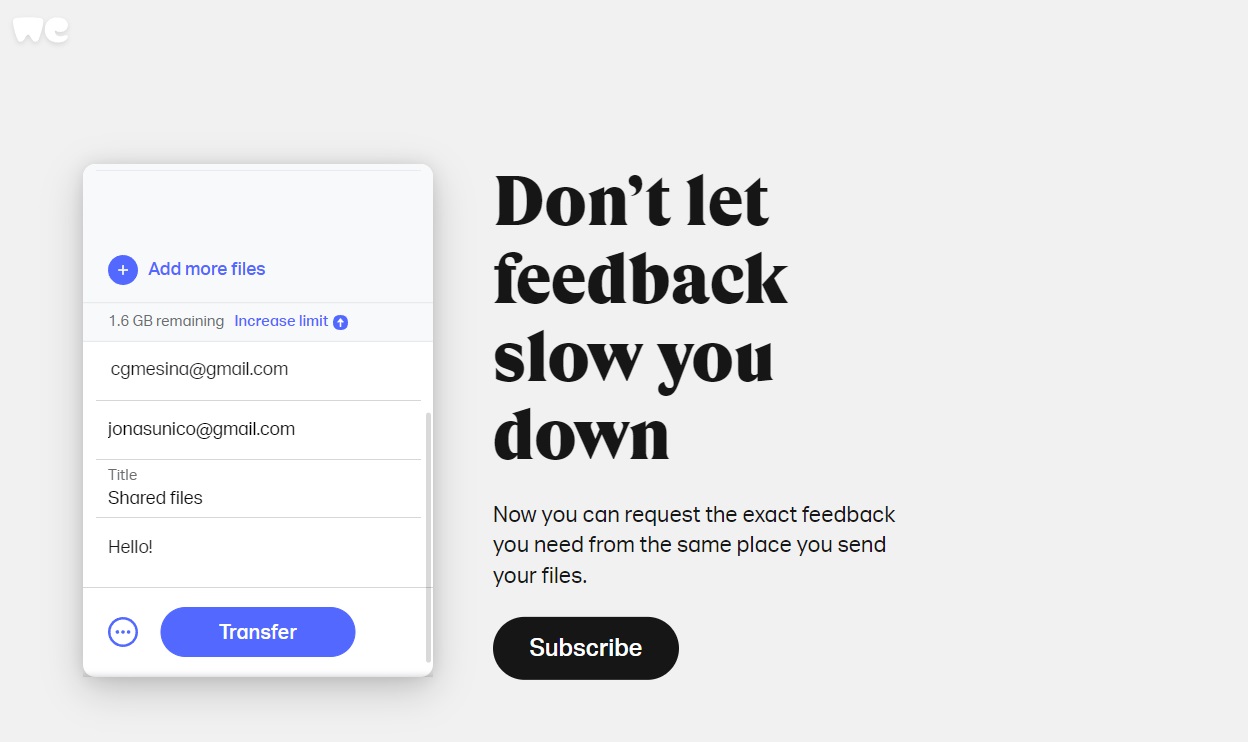
- Click the plus button and upload the files you want to send.

- Fill up the form and click the ellipsis button at the bottom left.
- Toggle Get transfer link.
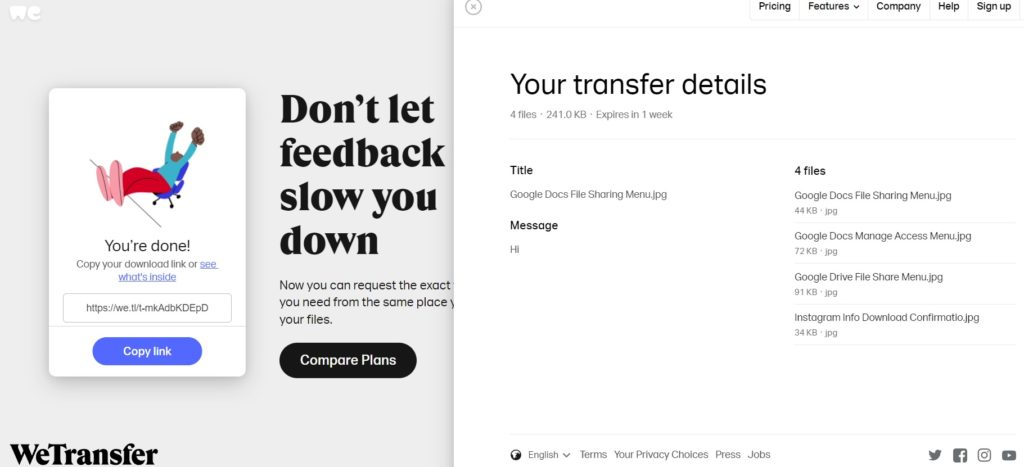
- Click Get a link and wait for the page to load.
- Select Copy link and then send it to WhatsApp.
Send Your Big Files Now!
WhatsApp is a great platform, but it has a few limits. Sending big files used to be bothersome, but the tutorial above should make it much easier for you to send files, regardless of size. Now, if you want to improve your security on WhatsApp, here’s how you can use it without a phone number.
FAQs on Send Large Videos and Files on WhatsApp
WhatsApp allows sharing of the following file formats:
Images: JPG, JPEG, PNG, WEBP*
Audio: OGG**, AMR, 3GP, AAC, MPEG
Documents: PDF, DOC, DOCX, PPTX, XLSX
Video: MP4 (with H.264 video codec and AAC audio), AVI, FLV, 3GP, MKV, MOV
Contacts: vCard (.vcf)
If you’re sending a file that’s not larger than 2GB, you can send it on WhatsApp directly. If it’s larger and you don’t have Google Drive, you can compress the file if it’s a video or upload it to iCloud and share it from there.
Since WhatsApp mobile is similar to the web version, The same file size and format restrictions apply to WhatsApp’s web version. You can share links from OneDrive, Dropbox, Google Drive, or WeTransfer.
No, you can’t send files or messages to a blocked contact on WhatsApp. When someone is blocked, WhatsApp blocks the text box and any other actionable elements that allow you to communicate with them, including files.
How to Get Verified on Facebook and Instagram
Read Next