How to Delete a Facebook Messenger Account
Messenger is among the most popular messaging apps to catch up with your friends. Facebook’s chat service packs plenty of features to make your conversations fun and meaningful. But what if you no longer want to use Messenger? How can you delete your Messenger account? Is there anything you need to know before deleting your Messenger account? Keep reading to know it all.
Can You Delete Messenger by Deactivating Facebook?
The first thing you need to know is that Facebook and Messenger are linked with the same ID. To be more precise, Messenger is a part of Facebook that enables private one-on-one or group communication on the platform. So, as long as your Facebook ID exists, Messenger will remain active for you.
But if you deactivate your Facebook ID, you can still continue to use Messenger. This is because you still have a Facebook ID — it is just inactive.
On the other hand, if you delete your Facebook account, all your profile information will be deleted from the platform, which means Messenger will also be deleted. So, to delete your Messenger account, you will have to delete your Facebook account permanently.
How to Delete Your Messenger Account
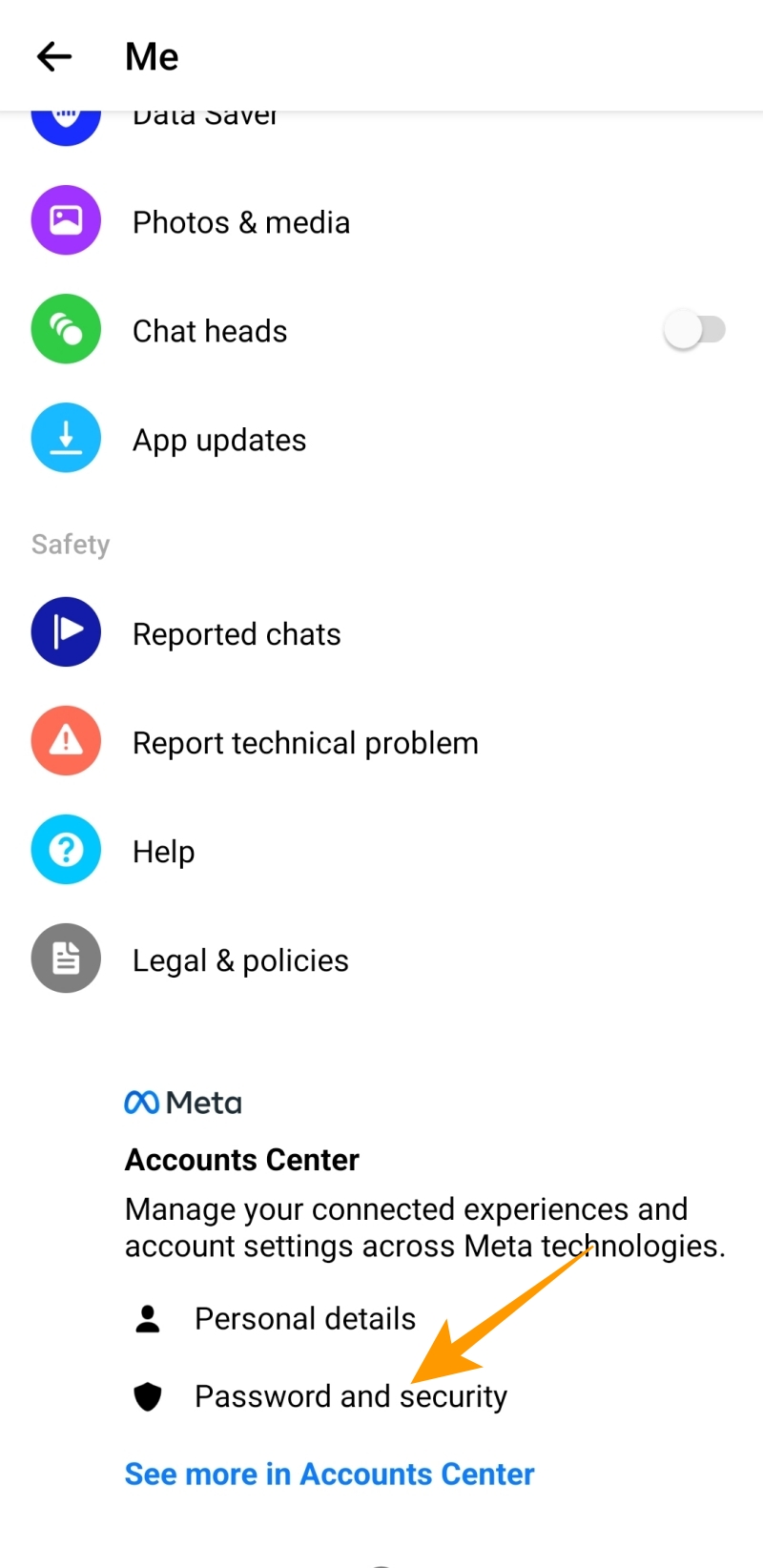
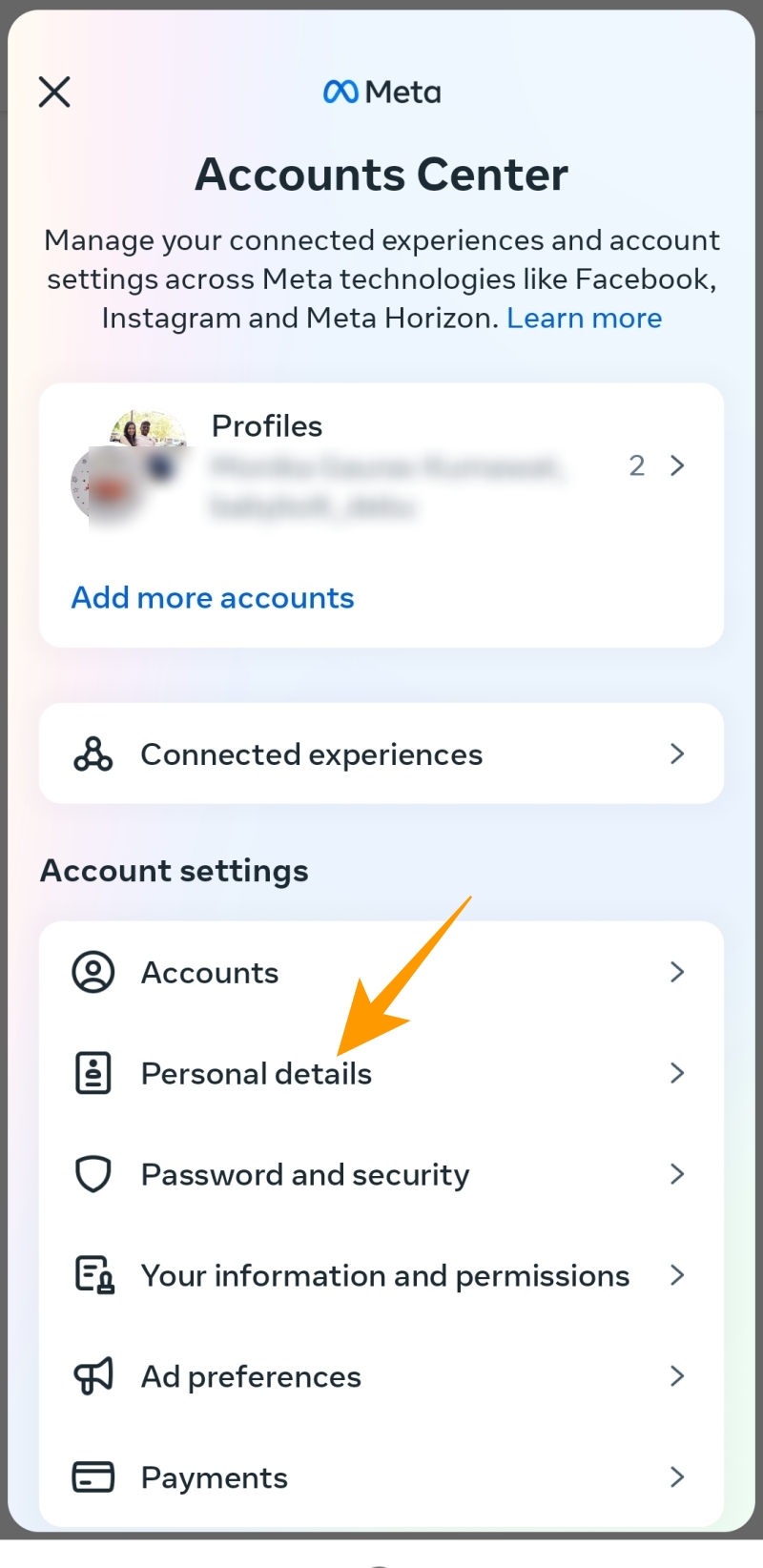
As explained above, you will need to delete your Facebook account to remove your Messenger account. Here is how you can do it through the Messenger app:
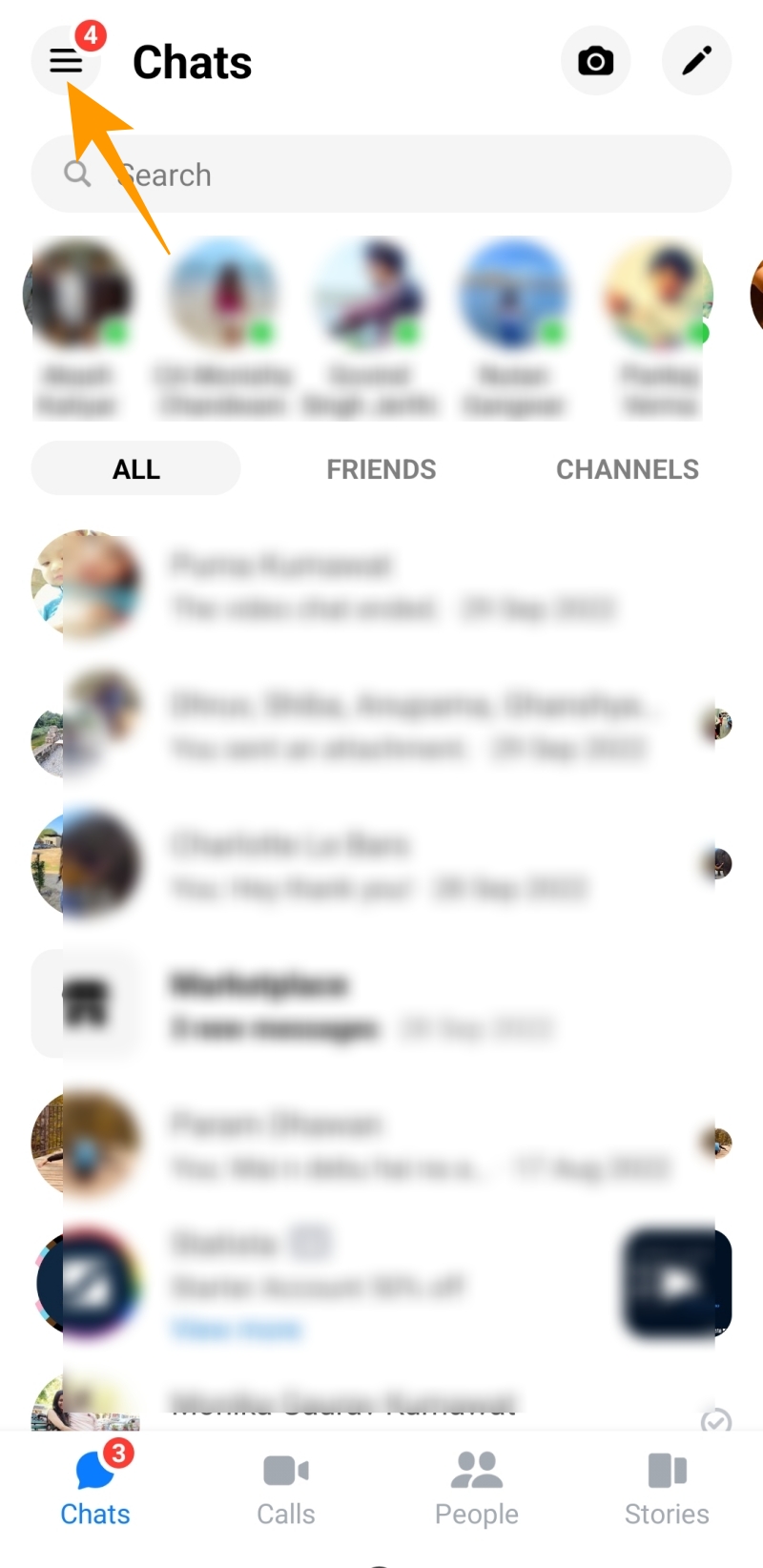
- Launch the Messenger app and tap the hamburger menu at the top left.

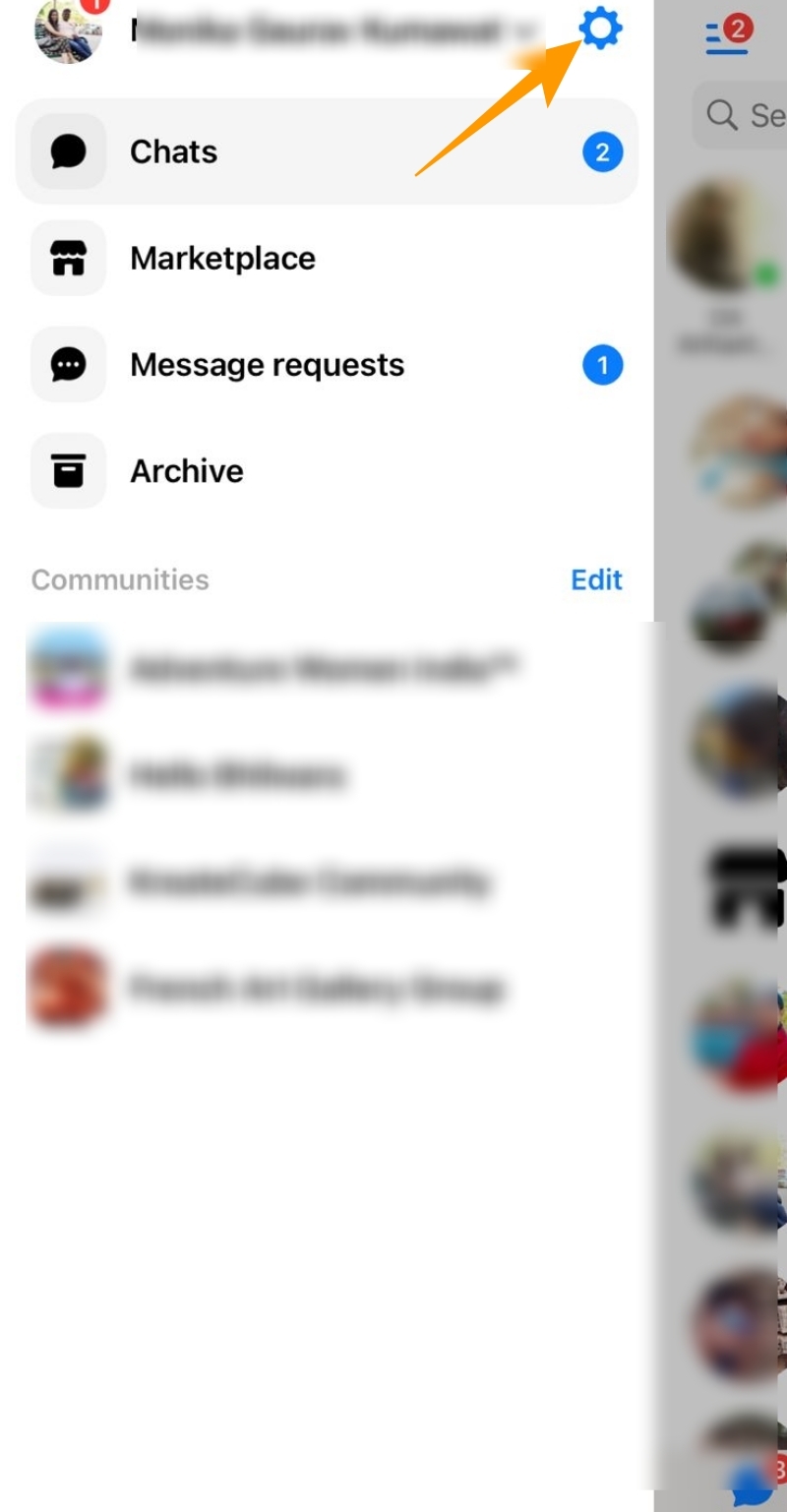
- Tap on the gear icon given next to your profile name.

- On the next page, scroll down to the bottom and tap on Account Center.
- Tap on Personal details under Account settings.
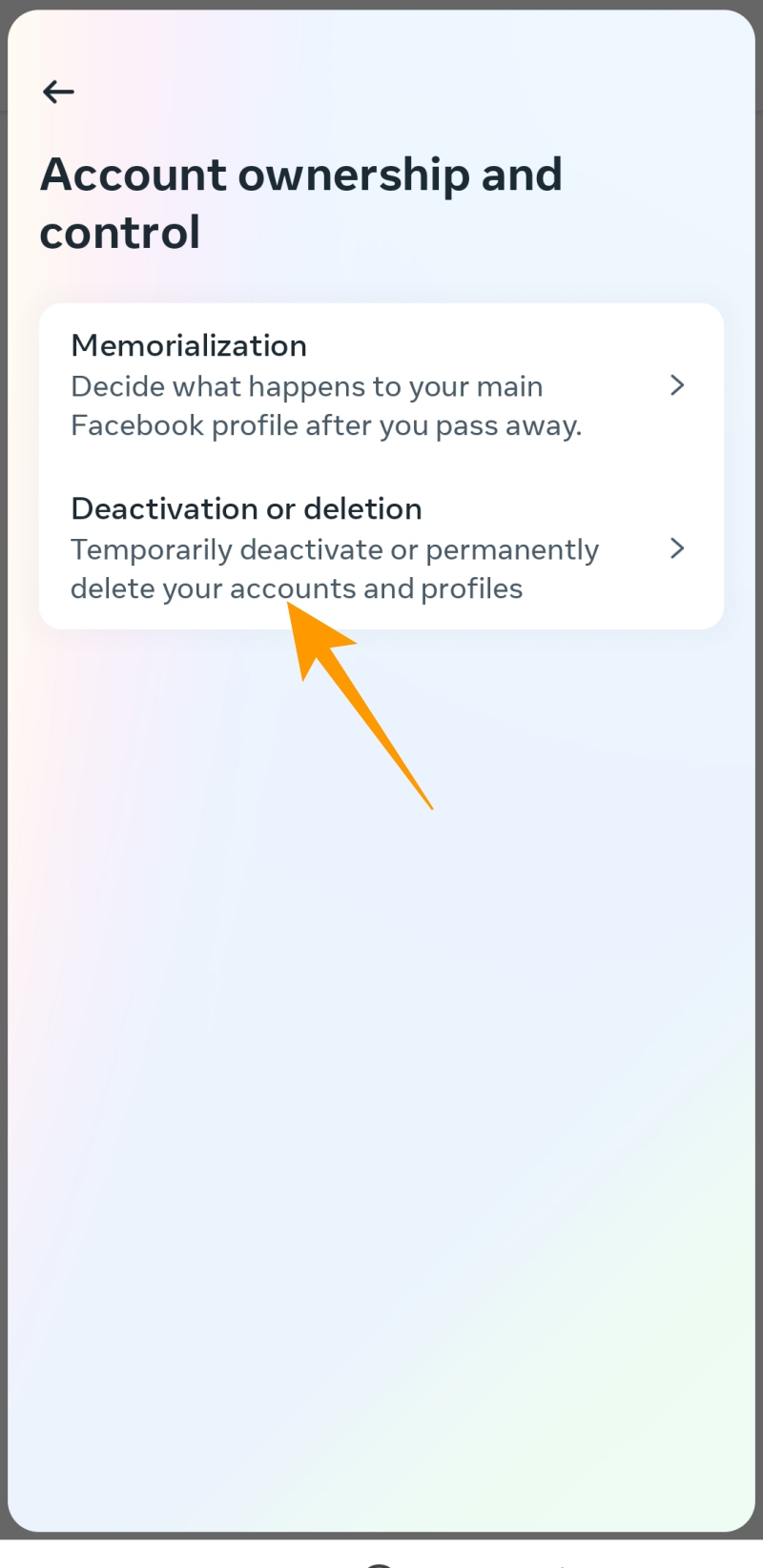
- Under Personal Details, select Account ownership and control.
- On the next page, tap on Deactivation or deletion.
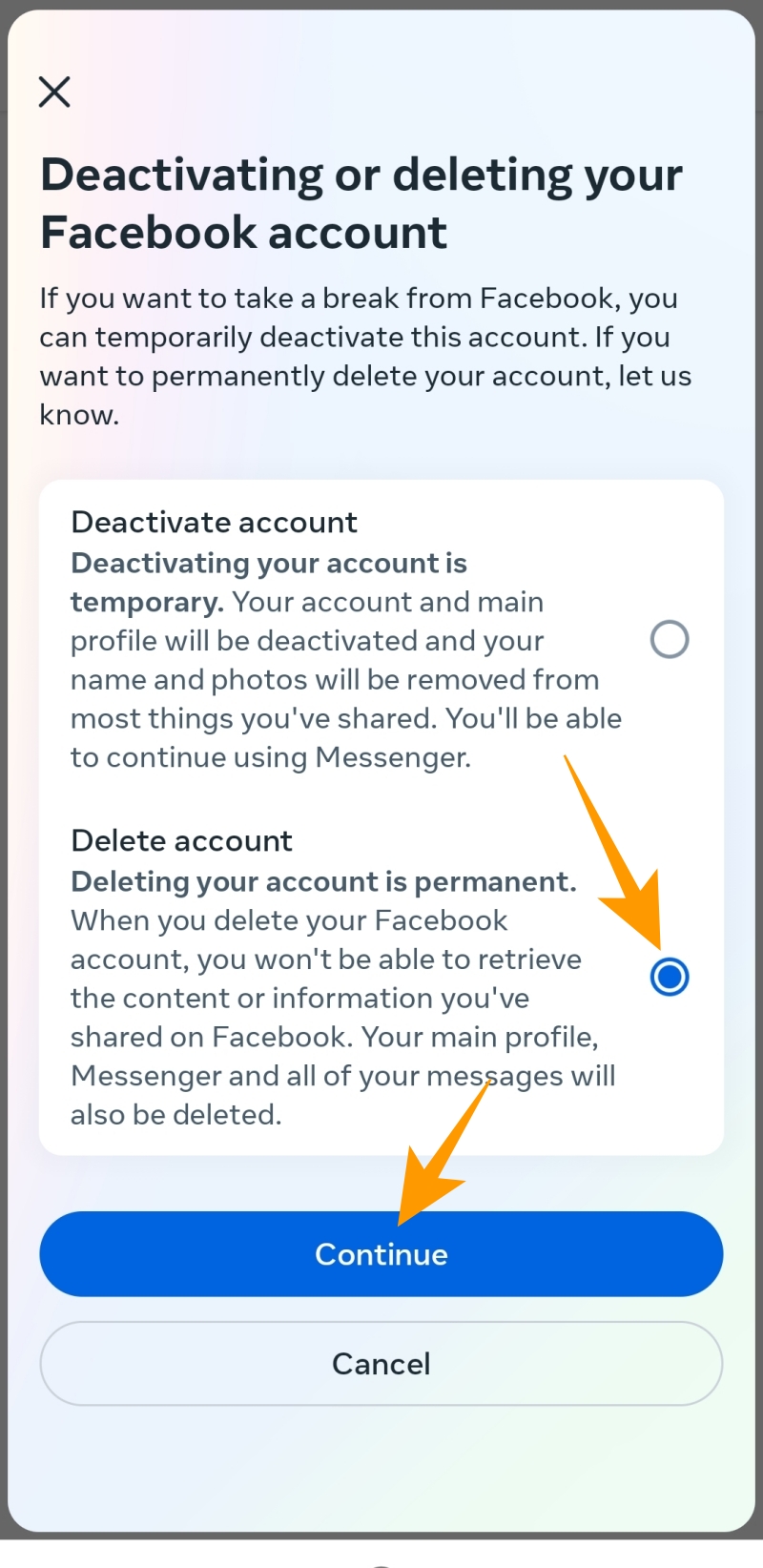
- Tap the Delete account option and tap Continue to permanently delete your Facebook and Messenger accounts.
Top 3 Messenger App Alternatives
Messenger is the most popular messaging app in the world, but it is completely ok if you don’t want to use it. Here are three equally worthy alternatives to Facebook Messenger.
1. WhatsApp
WhatsApp is Meta’s other popular messaging platform, with over 2 billion users worldwide. It is an excellent alternative to Messenger due to its easy-to-use interface for text messaging and audio and video calling. You can use it for a one-on-one chat or create groups and communities to engage with a larger group. It is also possible to create WhatsApp polls to ask for opinions or initiate a video call for groups and individual chats.
You can use WhatsApp on your mobile phone and desktop and indulge in an end-to-end encrypted chat with friends and family. Unlike other messaging apps, WhatsApp offers the convenience of making and receiving payments directly within the app. However, you can send messages only to your contacts who are on the platform.
2. Telegram
Telegram is another cross-platform instant messaging service that can be used without your phone number. Create an account on Telegram, and you are good to use for connecting with anyone across the globe. It offers many unique features like picture and video editing within the app and even allows you to replace sent media files. Apart from sending texts and indulging in audio and video chats, that platform also allows you to schedule messages for any time you want.
3. Snapchat
Snapchat is popularly known as a multimedia instant messaging platform to exchange texts, images, and videos with friends and family. Features like Snapchat streaks and Snapchat score make this platform interesting for Snapchatters. You can use it for group video calling and sharing stories and snaps with anyone in your friend list. You can even view old snaps from chats and find all your Snapchat photos and videos under memories. What makes Snapchat unique are its lenses and filters that make your pictures and videos more appealing.
Wrap up
Removing or deleting your Messenger account without deleting your Facebook account isn’t possible, as Messenger is connected to your Facebook account. In such cases, consider logging out from the Messenger app. This will help avoid unwanted notifications and messages from your Facebook friends.
FAQs
A: You may face trouble removing your Messenger account if connected to a Facebook account. In that case, you must permanently delete your Facebook account to remove your Messenger account. However, if your Messenger account is not connected to a Facebook account, you can delete it directly.
A: To delete a second Facebook account from Messenger, go to Meta Account Center under settings within the Messenger app and follow the instructions herein:
Account Center > Personal details >Account ownership and control > Deactivation or deletion.
Under Deactivation or deletion, choose the account you want to delete. On the next screen, choose the delete account option and tap continue to delete the account.
A: There is no way to delete your Messenger account without Facebook, as Messenger is a part of Facebook. So, if you want to delete your Messenger account, you must delete your Facebook account.
How to Record Snapchat Videos Without Holding the Button
Read Next